Engineer Toolbox
Engineer Toolbox adds the ENG custom function namespace to Excel. It provides Python-backed engineering calculations for structural analysis, fluid mechanics, heat transfer, thermodynamics, chemical and process-safety data, control systems, signal processing, photovoltaics, and related workflows.
The add-in is designed for spreadsheet-first engineering work: keep tabular input data in Excel, call calculations with formulas such as =ENG.REYNOLDS(...), and use the taskpane when you want guided function discovery, parameter entry, or a static result instead of a live formula.
Warning: Functions are provided as-is for academic and non-commercial use with no warranty whatsoever as per the terms of use. Never rely on results for design, safety, compliance, or commercial decisions. Always verify with your own calculations and checks.
Web Demo
No installation or Excel account required. Explore the pre-configured interactive model directly in your browser:
Quick Start
- Install Engineer Toolbox using your organization's add-in deployment process or a sideloaded manifest, then open Excel.
- On the Home ribbon, choose Engineer Toolbox to open the taskpane.
- Search or browse functions, select a function, fill the required parameters, and insert either a formula or the calculated result.
- To type formulas manually, use the
ENGnamespace:=ENG.FUNCTION_NAME(argument1, argument2, ...).
Use Formulas Directly
Enter functions in cells with the ENG namespace. For example:
=ENG.REYNOLDS(998, 2.5, 0.05, 0.001)
Use normal Excel cell references and ranges for parameters. Matrix and table-like parameters use Excel ranges, such as A2:C4, which are passed to Python code internally as two-dimensional lists.
Insert From The Taskpane
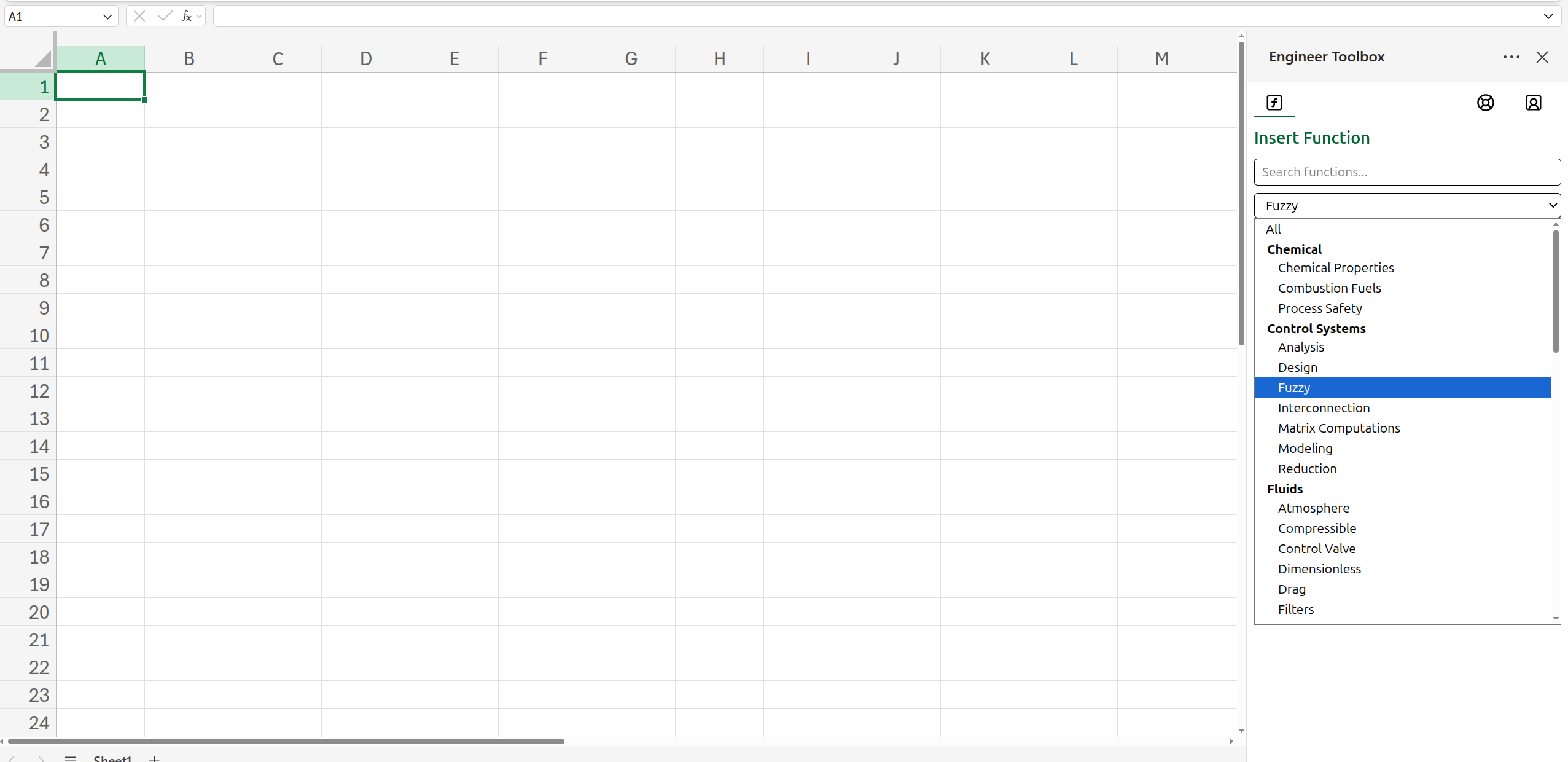
Use the taskpane when you want to search the function catalog, inspect parameter descriptions, choose enum values, or select worksheet ranges through the UI. You can select the category of function from the dropdown list of function categories.
For calculations you do not want recalculated, use Insert result instead of formula in the taskpane. This writes the current calculated value into the selected cell.

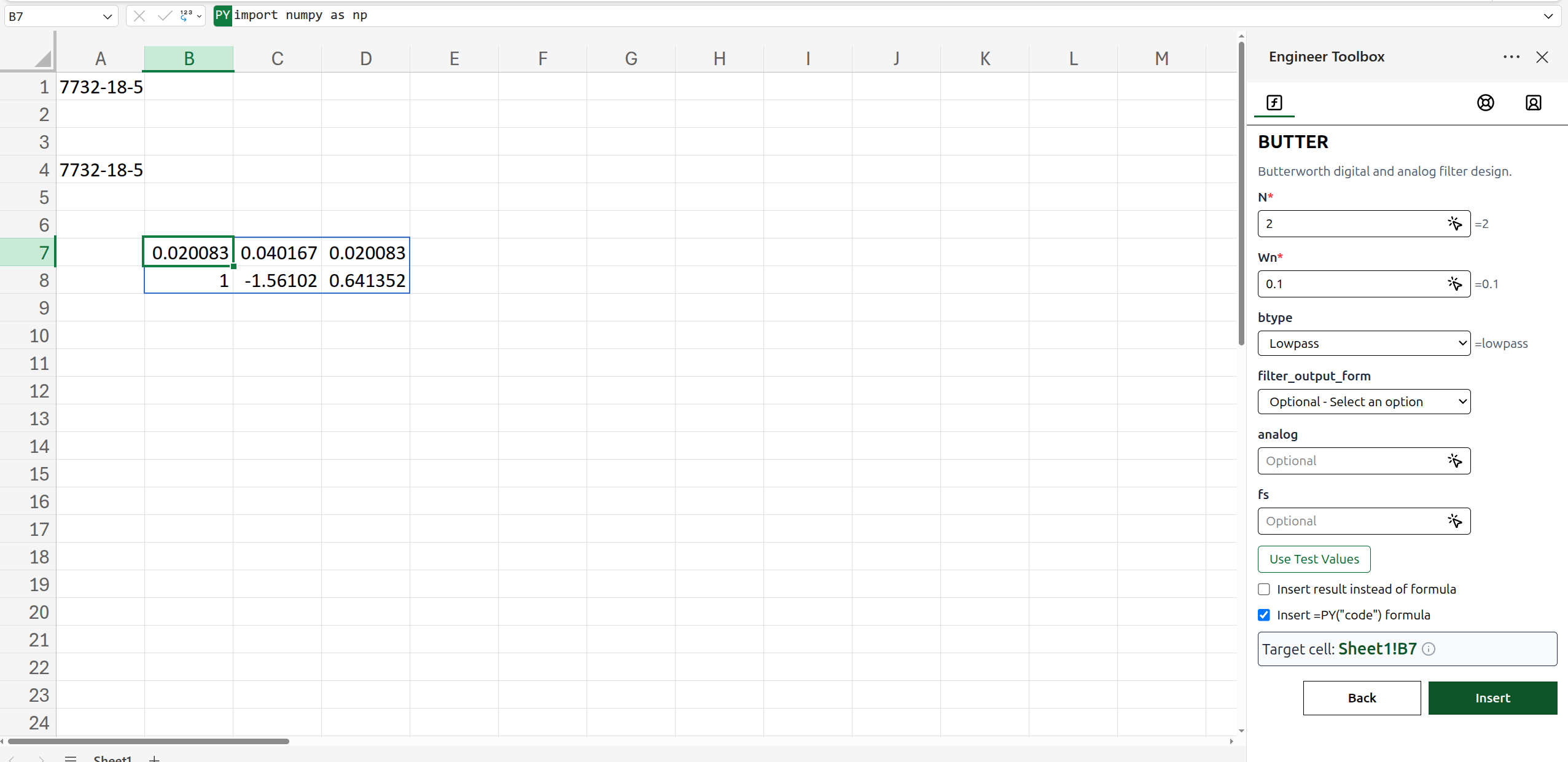
Some functions support insertion as Excel's native =PY(...) formula. Use this path when the taskpane offers it and you want the workbook to use Microsoft Python in Excel rather than the add-in's local Pyodide runtime.
Function Areas
Engineer Toolbox includes Python-backed functions across the following engineering areas. Use the taskpane search box to find the specific calculation, inspect its parameters, and open detailed function documentation when available.
| Area | What it covers |
|---|---|
| Chemical engineering and process safety | Chemical properties, combustion and fuel calculations, exposure limits, flash points, flammability limits, and safety reference helpers. |
| Control systems | System modeling, state-space and transfer-function analysis, controller design, interconnections, matrix computations, reduction, and fuzzy-logic utilities. |
| Fluids | Dimensionless numbers, friction factors, drag, fittings, flow meters, control valves, compressible flow, filters, and atmospheric calculations. |
| Heat transfer | Conduction, convection, boiling, condensation, radiation, heat exchangers, insulation, tube banks, packed beds, air coolers, and related correlations. |
| Photovoltaics and solar analysis | Solar position, irradiance models, module models, solar geometry, performance analysis, and data-quality checks. |
| Signal processing | Filtering, spectral analysis, wavelets, resampling, smoothing, transforms, and related time-series tools. |
| Structural analysis | Beam, frame, truss, plate, and finite-element workflows for reactions, displacements, forces, and deflections. |
| Thermodynamics | Fluid properties, phase equilibrium, psychrometrics, saturation properties, and mixture workflows. |
Common Use Cases
1. Fluid Flow And Pressure-Loss Screening
Problem: Estimate flow regime and pressure-loss inputs for pipe calculations.
Workflow: Put fluid properties, pipe geometry, roughness, and flow conditions in worksheet columns. In the taskpane, search the fluids area for dimensionless-number and friction-factor calculations, select the relevant function, and insert either a live formula or a static result.
Use when: You have tabular pipe cases and want repeatable calculations across many rows.
| Case | Density kg/m^3 | Velocity m/s | Diameter m | Viscosity Pa*s | Workflow | Output |
|---|---|---|---|---|---|---|
| Water loop | 998 | 2.5 | 0.05 | 0.001 | Calculate flow-regime metric from fluid and pipe inputs | Dimensionless flow value |
| Rough pipe | Case result | 0.0002 relative roughness | Calculate friction factor from flow and roughness inputs | Friction factor |
2. Structural Analysis: Beam Reactions And Deflection
Problem: Analyze a beam from support and load tables without leaving Excel.
Workflow: Prepare ranges for supports, loads, material properties, and query locations. In the taskpane, search the structural area, choose the beam calculation you need, then select the worksheet ranges for each argument.
Use when: You need quick study calculations or want to compare load cases in a workbook.
| Beam span m | Supports range | Loads range | Query x m | Workflow | Output |
|---|---|---|---|---|---|
| 6 | A8:C9 | E8:H10 | 3 | Calculate deflection from support and load tables | Deflection at midspan |
| 6 | A8:C9 | E8:H10 | 0 | Calculate support reaction from the same model inputs | Vertical reaction |
3. Thermodynamics: Fluid Properties
Problem: Look up thermodynamic properties from known state variables.
Workflow: Enter fluid names, property symbols, state variables, and values in worksheet cells. Use the taskpane thermodynamics area to select a property lookup workflow and fill the dropdown-style parameters carefully.
Use when: You need workbook-driven property lookups for fluids such as water, air, ammonia, refrigerants, or other supported fluids.
| Fluid | Input 1 | Value 1 | Input 2 | Value 2 | Workflow | Output |
|---|---|---|---|---|---|---|
| Water | Temperature | 300 | Pressure | 101325 | Lookup density from two known state variables | Density in kg/m^3 |
| Water | Temperature | 373.15 | Quality | 0 | Lookup saturated-liquid enthalpy | Enthalpy |
4. Signal Processing With Optional =PY
Problem: Design a filter or process a signal from worksheet ranges.
Workflow: Keep measured series in Excel ranges, then search the signal-processing area for filtering, smoothing, spectral-analysis, wavelet, or resampling workflows. When the taskpane offers native Python insertion, choose whether to insert a local custom function or a native =PY(...) formula.
Use when: Your measured series is already in Excel and you want to generate coefficients, spectra, or filtered values in adjacent cells.
| Signal/Data | Parameter | Workflow | Output |
|---|---|---|---|
| Sampling rate 100 Hz | Low-pass cutoff 10 Hz | Design a digital low-pass filter | Filter coefficients |
Series in A2:A501 | Window 21, order 3 | Smooth a measured signal | Smoothed signal |
5. Troubleshooting: Optional Parameters And Enum Values
Problem: A formula returns an error string or an unexpected result.
Workflow: Check required parameters, units, matrix shapes, and enum values. Optional parameters can usually be left blank in the taskpane or omitted at the end of a typed formula. For optional parameters in the middle of a formula, use an empty argument placeholder in the formula or fill the arguments through the taskpane to avoid misplacing values.
| Symptom | Likely cause | Example fix | Output |
|---|---|---|---|
Error: ... | Invalid enum text | Choose the value from the taskpane dropdown or type the documented option text exactly | Function recalculates |
#VALUE! or shape error | Matrix/range dimensions do not match the function | Verify ranges are rectangular and match the required matrix shape | Valid matrix result |
| Long recalculation | Large range or heavy Python package loading | Insert a static result after reviewing the output | Stable worksheet value |
Input And Output Notes
- Numeric parameters use workbook numbers. Units are not converted automatically; use the units documented in each function description.
- Range parameters with type
list[list]should be rectangular Excel ranges. A single row or single column is still passed as a two-dimensional list. - Optional parameters are shown in square brackets in signatures. Defaults are shown in the taskpane or detailed function documentation when supplied by metadata.
- Boolean parameters accept Excel TRUE/FALSE values or taskpane toggles/dropdowns where available.
- For enum or option parameters, choose the value from the taskpane dropdown or type the documented option text exactly as shown.
- Many functions return a scalar number. Functions that naturally produce arrays, matrices, dictionaries, or records may spill a range or return a JSON string, depending on the underlying Python implementation.
- Functions execute through the local Pyodide runtime unless inserted through Excel's native
=PY(...)path.
FAQ
Does Engineer Toolbox send workbook data to Boardflare?
No. Engineer Toolbox calculations run inside Excel using a local Python/Pyodide runtime, and supported calculations can also be inserted as native Excel =PY(...) formulas. Review your organization's Microsoft 365 Python in Excel policy before using the native =PY path.
Why does the first calculation take longer?
The add-in may need to initialize the Python runtime and load engineering packages the first time a function is used. Later calculations are usually faster once the runtime is warm.
How do I know which units to use?
Read each function's parameter descriptions and linked reference page. Most engineering functions expect SI units, but some domain-specific functions use conventional symbols or library-specific units.
What should I do with safety-critical calculations?
DO NOT RELY ON ENGINEER TOOLBOX FOR SAFETY-CRITICAL CALCULATIONS. Use Engineer Toolbox for exploratory, educational, or non-commercial workbook analysis only.
Each function has a link to its Python source code, and users are encouraged to review that source before relying on the result, even for non-critical calculations. Since Engineer Toolbox functions wrap established Python packages, it is important to also validate the relevant source code, documentation, assumptions, and limitations of the underlying package being called. Note that neither the underlying python packages nor the wrapper functions have been validated for accuracy, reliability, or fitness for any purpose. They are provided "as is" with no warranties of any kind. Wrapper code and underlying python libraries may be updated, changed, or removed at any time without notice. Therefore, use of this add-in is solely at the user's own risk.