Fuzzy Match for Excel
The Fuzzy Match add-in provides two custom Excel functions — FUZZY.LOOKUP and FUZZY.MATCH — that let you search for approximate text matches directly in your spreadsheet. Unlike Excel's built-in XLOOKUP and XMATCH, which require exact matches, these functions tolerate typos, abbreviations, alternate spellings, and other variations using configurable string comparison algorithms.
All formula computation runs locally inside the Excel runtime. Your data never leaves Excel for matching.

Quick Start
Inserting from the Taskpane
After installing from AppSource, a Fuzzy Match button appears in the Excel Home ribbon. Click the Fuzzy Match button to open the taskpane. The taskpane lists both available functions.
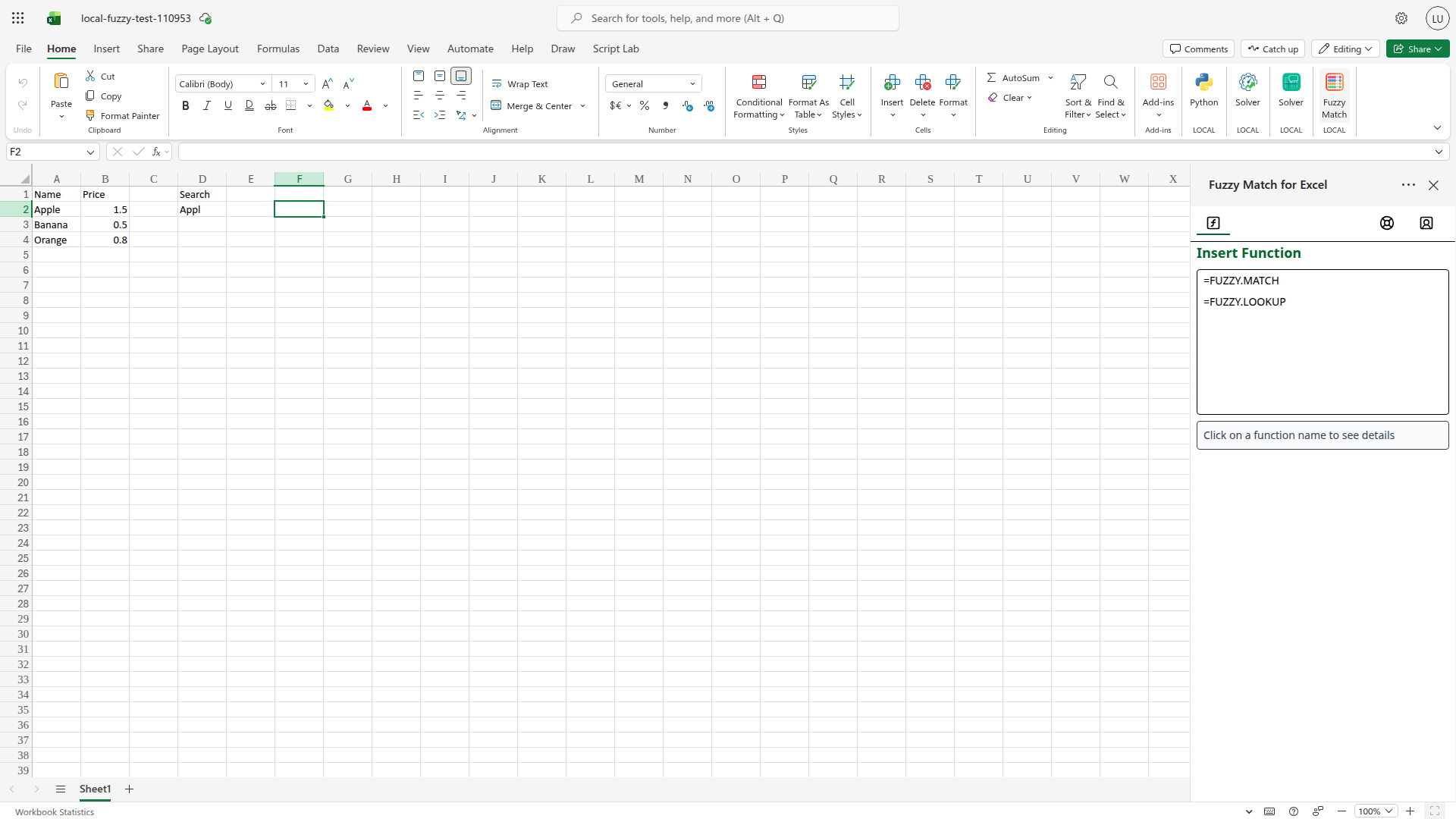 The taskpane showing both available functions. Click a function name to see its full signature and parameter descriptions.
The taskpane provides a guided insertion workflow:
-
Click a function name in the list (e.g.,
=FUZZY.MATCH). The panel expands to show the function signature, description, and a collapsible Details section listing each parameter.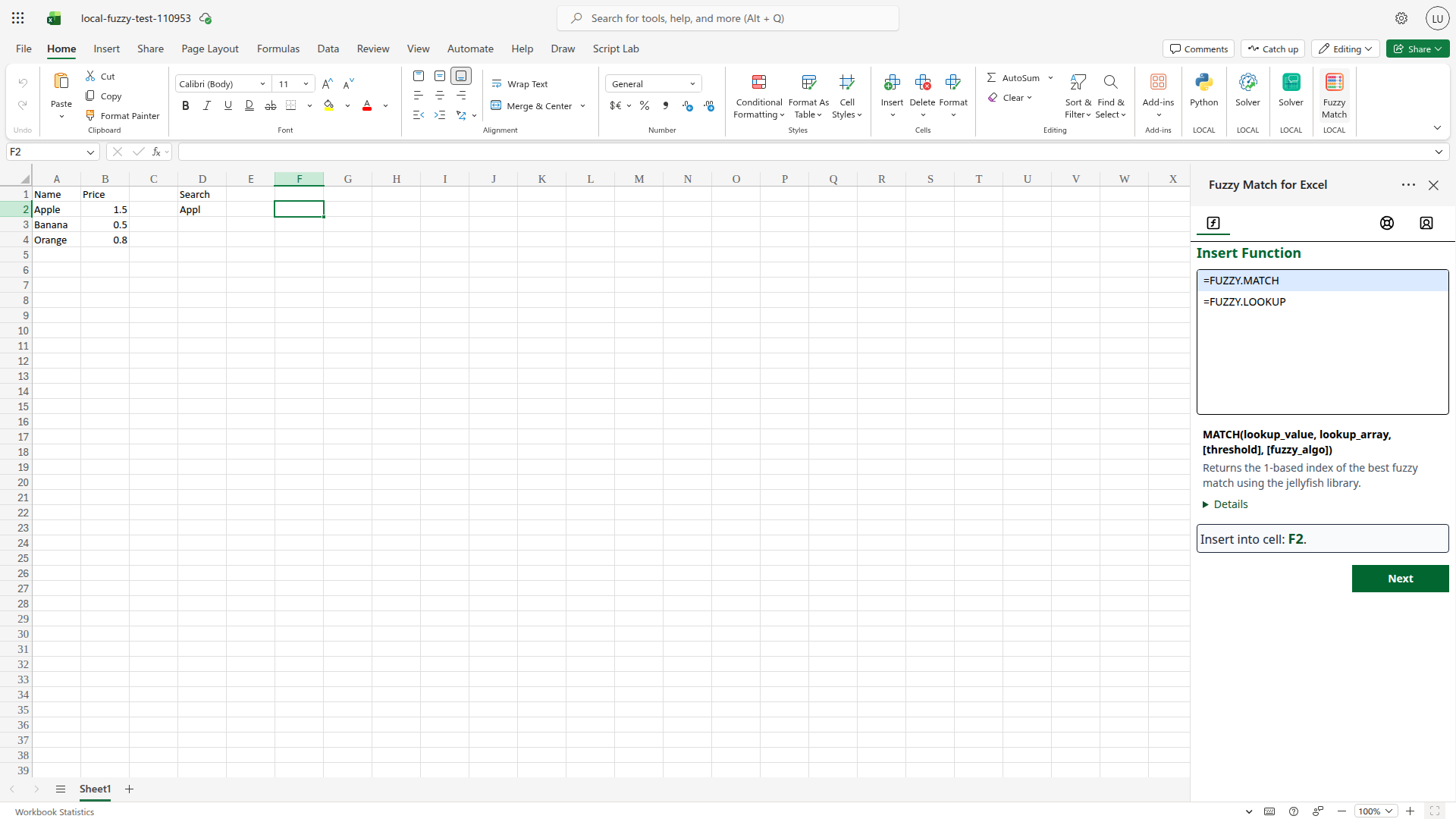 After clicking a function, the taskpane shows its full signature and a ▶ Details toggle for parameter descriptions.
 -
Click Next. The taskpane advances to the parameter input step.
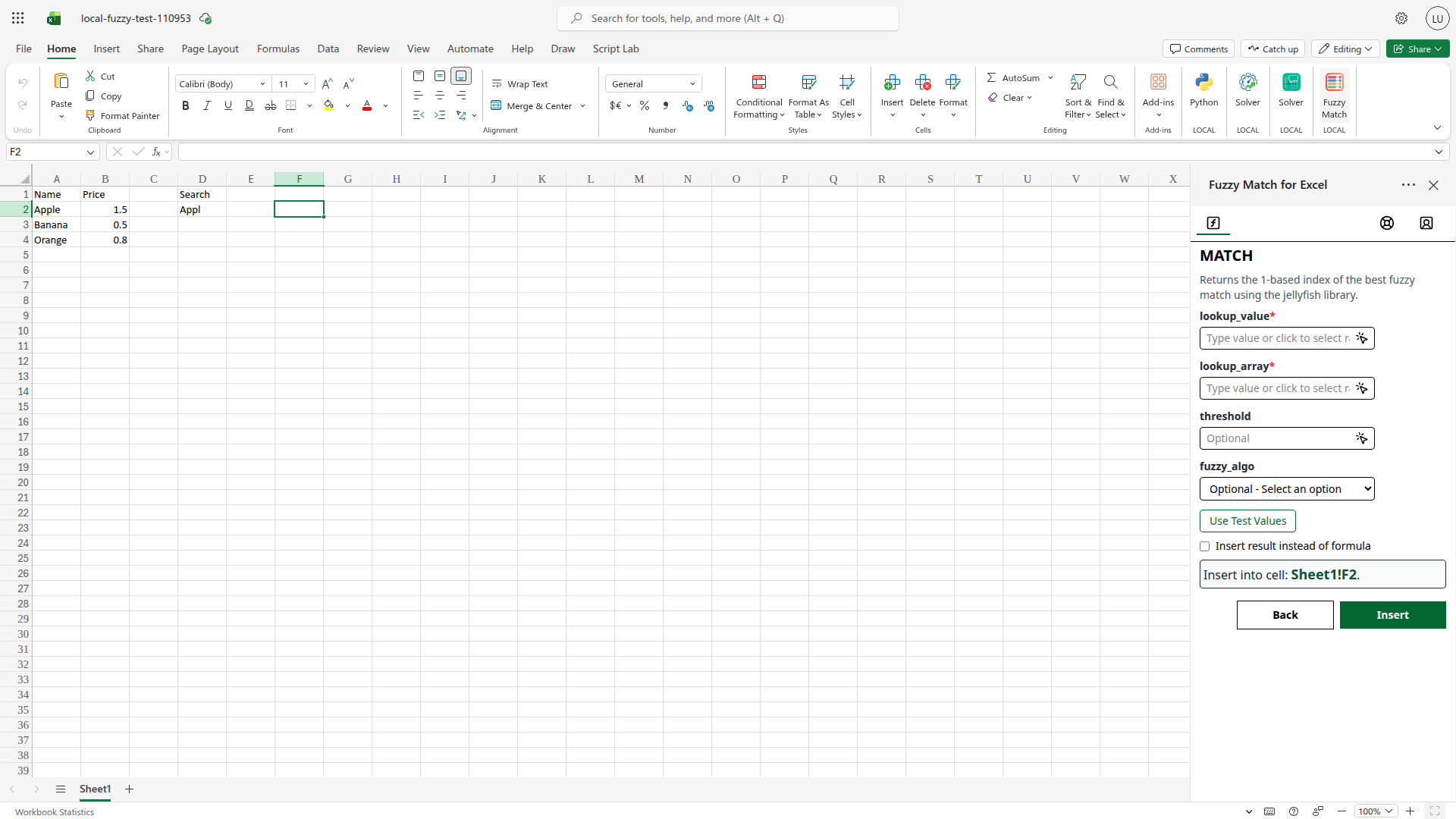 Each parameter gets its own input field. Required parameters are marked with a red asterisk (). Optional parameters like
 thresholdandfuzzy_algocan be left blank to use their defaults.* -
Click Insert. The formula is written into the active cell and evaluated.
If you want a static value instead of a formula, check Insert result instead of formula before inserting.
 The demo workbook after the sample result is written into cell F2.
Function Reference
FUZZY.LOOKUP
Like XLOOKUP, but for approximate matches. Searches lookup_array for the closest match to lookup_value and returns the corresponding value from return_array.
Syntax:
=FUZZY.LOOKUP(lookup_value, lookup_array, return_array, [threshold], [fuzzy_algo])
| Parameter | Required | Type | Description |
|---|---|---|---|
lookup_value | ✅ Yes | Range/Value | The text you are searching for. Can be a single cell or a column range to match multiple values. |
lookup_array | ✅ Yes | Range | The text values to search within. Must have the same dimensions as return_array. |
return_array | ✅ Yes | Range | The values to return from. Each cell corresponds to the same position in lookup_array. |
threshold | Optional | Number (0–1) | Minimum similarity score required to accept a match. Any candidate scoring below this is ignored. Default: 0.6. |
fuzzy_algo | Optional | Enum string | The string comparison algorithm. Default: "levenshtein". See the Algorithms section for valid values. |
Constraint: lookup_array and return_array must have the same dimensions. If they differ, the function returns an error string.
Return value: An Excel Data Type (Entity). If a match is found, the basicValue is the result. If no match meets the threshold, the basicValue is the string "no match" and all properties (Result, Score, Match) are returned as empty strings.
FUZZY.MATCH
Like XMATCH, but for approximate matches. Searches lookup_array for the closest match to lookup_value and returns its 1-based row index.
Syntax:
=FUZZY.MATCH(lookup_value, lookup_array, [threshold], [fuzzy_algo])
| Parameter | Required | Type | Description |
|---|---|---|---|
lookup_value | ✅ Yes | Range/Value | The text you are searching for. Can be a single cell or a column range. |
lookup_array | ✅ Yes | Range | The column of text values to search within. |
threshold | Optional | Number (0–1) | Minimum similarity score. Default: 0.6. |
fuzzy_algo | Optional | Enum string | The string comparison algorithm. Default: "levenshtein". |
Return value: An Excel Data Type (Entity). If a match is found, the basicValue is the 1-based index. If no match meets the threshold, the basicValue is the string "no match" and all properties (Index, Score, Match, Distance) are returned as empty strings.
Using the index with INDEX(): FUZZY.MATCH is often used together with INDEX to retrieve a value, just like native XMATCH:
=INDEX(B2:B500, FUZZY.MATCH(D2, A2:A500))
Examples & Scenarios
Let's look at how these functions perform with real-world data variations.
Example Data: Product Catalog
Suppose you have a master catalog in columns A and B, with search terms in D:
| Name (A) | Price (B) | Search Term (D) |
|---|---|---|
| Apple | $1.50 | Appl |
| Banana | $0.50 | Bananna |
| Orange | $0.80 | Ornage |
| Grapes | $2.20 | Grapes |
Scenario 1: Finding a Price with FUZZY.LOOKUP
You have a list of messy search terms in column D and want to retrieve the price.
| Search Term (D) | Formula in F2 | Result in F2 |
|---|---|---|
Appl | =FUZZY.LOOKUP(D2, A2:A5, B2:B5) | $1.50 |
Bananna | =FUZZY.LOOKUP(D3, A2:A5, B2:B5) | $0.50 |
Ornage | =FUZZY.LOOKUP(D4, A2:A5, B2:B5) | $0.80 |
Grapes | =FUZZY.LOOKUP(D5, A2:A5, B2:B5) | $2.20 |
Scenario 2: Getting the Match Index with FUZZY.MATCH
If you need to know which row the match was found on:
| Search Term (D) | Formula in F2 | Result in F2 |
|---|---|---|
Appl | =FUZZY.MATCH(D2, A2:A5) | 1 |
Bananna | =FUZZY.MATCH(D3, A2:A5) | 2 |
Ornage | =FUZZY.MATCH(D4, A2:A5) | 3 |
Grapes | =FUZZY.MATCH(D5, A2:A5) | 4 |
Unknown | =FUZZY.MATCH("xyz", A2:A5) | no match |
Scenario 3: Inspecting Match Quality
By default, the functions return a Data Type. You can extract the similarity score to see how confident the match is:
=F2.Score  -> returns 0.80 (for "Appl" vs "Apple")
=F2.Match  -> returns "Apple"
Scenario 4: Handling "no match" with INDEX
When a match is not found, FUZZY.MATCH returns a Data Type with the value "no match". If you use this inside an INDEX function, it will cause a #VALUE! error because INDEX expects a numeric row index.
You can handle this easily with IFERROR:
=IFERROR(INDEX(B2:B5, FUZZY.MATCH(D2, A2:A5)), "Not Found")
This ensures your spreadsheet remains clean even when no high-confidence matches are found.
Scenario 5: Bank Transaction Categorization
Bank statement descriptions are often cluttered with store IDs, dates, and payment processor prefixes, burying the actual merchant name. levenshtein distance struggles with this because the lengths are vastly different. Instead, use the token_set_ratio algorithm which specializes in finding substring matches.
| Transaction (D) | Formula in F2 | Result in F2 |
|---|---|---|
POS DEBIT 12/04 UBER *TRIP | =FUZZY.LOOKUP(D2, A2:A5, B2:B5, 0.7, "token_set_ratio") | Uber Technologies |
POS PURCHASE AMAZON MARKETPLACE ORDER 4821 | =FUZZY.LOOKUP(D3, A2:A5, B2:B5, 0.7, "token_set_ratio") | Amazon Marketplace |
Understanding Results
Both functions return Excel Data Types.
- If a match is found: The
basicValueis as follows:- FUZZY.MATCH: The 1-based row index of the best match in
lookup_array. - FUZZY.LOOKUP: The corresponding value from
return_arrayat the matched row. All properties are populated with match details.
- FUZZY.MATCH: The 1-based row index of the best match in
- If no match is found: The
basicValueis the string "no match". Crucially, all properties (like.Score,.Match, or.Index) are returned as empty strings rather than being omitted, allowing you to drag formulas down a column without encountering#FIELD!errors.
Properties Returned by FUZZY.MATCH
| Property | Type | Description |
|---|---|---|
Index | Number | The 1-based row position of the best match in lookup_array. |
Score | Number | Similarity score between the lookup_value and the matched string. Range is 0.0 to 1.0. |
Match | Text | The actual string from lookup_array that was selected as the best match. |
Distance | Number | The raw edit distance (number of character-level operations). Only present for edit-distance algorithms. |
Properties Returned by FUZZY.LOOKUP
| Property | Type | Description |
|---|---|---|
Result | Any | The value from return_array at the matched row. |
Score | Number | Similarity score between lookup_value and the matched string, 0.0 to 1.0. |
Match | Text | The actual text from lookup_array that was the best match. |
Accessing Properties in Formulas
You can extract any property into adjacent cells using dot notation:
=E2.Score          ← returns the similarity score from the FUZZY.LOOKUP result in E2
=E2.Match          ← returns the matched text
=F2.Index          ← returns the row index from a FUZZY.MATCH result in F2
=F2.Distance       ← returns the edit distance (if applicable)
Advanced Features
Multi-Value Inputs (Array Mode)
Both functions accept a range (not just a single cell) for lookup_value. If you provide a column of values, each row is matched independently and results spill down into multiple cells, one per input row. This lets you match an entire column at once:
=FUZZY.LOOKUP(D2:D100, A2:A500, B2:B500)
This returns up to 99 result cells, each containing a full data type with its own Score, Match, and Result.
Clearing Cached Models
If you want to free up local disk space or reset the add-in's environment, click the Clear Cached Models button at the very bottom of the Help & Support pane. This will safely clear the browser cache storage for the add-in iframe without affecting any of your other site data or Excel Online settings.
Algorithms & Logic
Which Algorithm Should I Use?
| Algorithm | Best Used For | Advantage over Levenshtein (Default) | Example Scenario |
|---|---|---|---|
| Levenshtein | General-purpose text (addresses, titles). | (Default baseline) Safely treats all edits (insertions, deletions, substitutions) equally. | "Microsoft" vs "Microsft" (Missing 'o') |
| Damerau-Levenshtein | Manual data entry (names, typed forms). | Counts swapped adjacent letters as 1 error instead of 2. Scores typing slips higher than Levenshtein. | "recieve" vs "receive" (Swapped 'e' and 'i') |
| Jaro | Short, single words (first names). | Looks at overall character overlap rather than rigid edit paths. Often yields more intuitive similarity scores for short names than Levenshtein. | "Jonathon" vs "Jonathan" |
| Jaro-Winkler | Brands, names, city names. | Gives a significant score boost if strings share the same starting characters. Penalizes end-of-word typos far less than Levenshtein. | "dixon" vs "dicksonx" (Prefix "di" matches) |
| Hamming | Fixed-length codes (SKUs, ZIPs). | Completely rejects strings of different lengths (score = 0). Prevents Levenshtein from incorrectly matching a 4-digit code to a 5-digit code. | "90210" vs "90211" (Works)"90210" vs "9021" (Fails - length mismatch) |
| Token Sort Ratio | Out-of-order words. | Sorts words alphabetically before comparing. Excellent for names formatted "Last, First" vs "First Last". | "Doe, John" vs "John Doe" |
| Token Set Ratio | Extracting entities. | Intersects common words. Excellent for finding merchants hidden inside messy bank statements. | "UBER *TRIP 12-05" vs "Uber" |
| Partial Ratio | Substring matching. | Finds the best matching substring of length N. | "Los Angeles, CA" vs "Los Angeles" |
| Ratio | General-purpose text. | Standard string edit ratio (very similar to Levenshtein). | "Microsoft" vs "Microsft" |
Similarity Score Formula
For edit-distance algorithms (Levenshtein, Damerau-Levenshtein, Hamming), the raw distance is normalized into a 0–1 score:
score = 1.0 - (distance / max(len(string1), len(string2)))
For example, "Appl" vs "Apple": Levenshtein distance = 1, max length = 5, so score = 1 - 1/5 = 0.8.
Jaro and Jaro-Winkler produce similarity natively (no distance conversion needed).
Levenshtein — Default
Counts the minimum number of single-character edits — insertions, deletions, and substitutions — to transform one string into another. (Wikipedia)
| Example | Distance | Score |
|---|---|---|
"Appl" → "Apple" | 1 | 0.80 |
"colour" → "color" | 1 | 0.83 |
"Microsoft" → "Microsft" | 1 | 0.89 |
Best for: General-purpose matching. As the "standard" edit distance, Levenshtein measures how many operations (insertions, deletions, or substitutions) are needed to transform one string into another. It is highly versatile and reliable for unstructured text like addresses or descriptions because it treats all single-character changes equally. However, it can be sensitive to length differences in very short strings and does not handle transpositions efficiently, treating a swapped pair like "teh" vs "the" as two separate errors.
Damerau-Levenshtein
Like Levenshtein, but also counts transpositions (swapping two adjacent characters) as a single operation rather than two substitutions. (Wikipedia)
| Example | Levenshtein | Damerau-Levenshtein |
|---|---|---|
"teh" → "the" | 2 (sub+sub) | 1 (transpose) |
"recieve" → "receive" | 2 | 1 |
Best for: Data entry errors where fingers slip on adjacent keys. Damerau-Levenshtein extends the standard Levenshtein algorithm by including transpositions as a first-class operation. Since swapping two adjacent letters is one of the most common human typing errors, this algorithm provides a more intuitive similarity score for "fat-finger" slips on forms or names. It retains all the versatility of Levenshtein while being significantly more robust for manually typed input.
Jaro
Measures similarity based on the number of matching characters and transpositions between two strings. Matching characters must be within floor(max_len / 2) - 1 positions of each other. Score ranges from 0.0 to 1.0 natively. (Wikipedia)
Best for: Short strings where character position matters less than character presence — particularly personal names and short identifiers. Originally developed for record linkage, Jaro similarity focuses on character overlap and order rather than rigid edit paths. It often produces more "natural" feeling scores for short words and allows characters to be slightly "out of place" without failing the match. However, it can occasionally yield false positives for unrelated strings that happen to share many characters.
Jaro-Winkler
Extends Jaro with a prefix bonus: strings that share a common prefix (up to 4 characters) receive a boosted score. This rewards strings that start the same way, as the beginning of a word is statistically less likely to contain a typo than the end. (Wikipedia)
Best for: Names, brand names, and any data where the beginning of the string is more reliable than the end. Jaro-Winkler extends the Jaro algorithm by adding a "prefix bonus," rewarding matches that share the first few characters. This is based on the observation that typing errors are statistically less likely at the beginning of a word. It is highly effective at matching variations like "Microsoft" vs "Micro-soft," though it can be very sensitive to typos in those critical first four characters.
| Example | Jaro | Jaro-Winkler |
|---|---|---|
"MARTHA" vs "MARHTA" | 0.944 | 0.961 |
"dixon" vs "dicksonx" | 0.767 | 0.813 |
"Jonathon" vs "Jonathan" | 0.966 | 0.980 |
Hamming
Counts the number of positions where the characters differ. Requires both strings to be the same length — if they differ, the score is immediately 0.0. (Wikipedia)
Best for: Fixed-length codes such as zip codes, product SKUs, or reference numbers where a string of equal length is always expected. Hamming distance is a simple and fast substitution-only metric that compares characters at the exact same index. While extremely efficient for IDs and SKUs where length consistency is guaranteed, it has zero tolerance for shifts; a single leading space or missing character at the start will shift every subsequent index and result in a similarity score of zero.
| Example | Distance | Score |
|---|---|---|
"apple" vs "applz" | 1 | 0.80 |
"10032" vs "10042" | 1 | 0.80 |
"apple" vs "appl" | — | 0.00 (length mismatch) |
Token Sort Ratio
Splits the string into words (tokens), sorts them alphabetically, and then compares them.
Best for: Data where the word order is inconsistent, such as "Last, First" names vs "First Last" names.
| Example | Score |
|---|---|
"John Doe" vs "Doe, John" | 1.00 |
Token Set Ratio
Splits the string into words, intersects the common words, and compares the differences.
Best for: Finding core entities buried inside messy text, such as extracting a merchant name from a bank transaction line.
| Example | Score |
|---|---|
"POS DEBIT 12/04 UBER *TRIP" vs "Uber" | 1.00 |
Partial Ratio
Finds the best matching substring of length N within the longer string.
Best for: When you know one string is a short subset of another, but they share exact phrasing.
FAQ
What happens when two candidates have the same similarity score?
The function iterates through lookup_array from top to bottom and returns the first candidate that achieves the maximum score. If two entries score identically, the one that appears earlier in the array wins.
Can I use this with non-English text?
Yes. The algorithms operate on Unicode characters, so they work with any script (Latin, Cyrillic, CJK, etc.). However, for languages with complex morphology or character composition, results may be less intuitive — the algorithms are not linguistically aware and treat each character as atomic.
Why does the Distance property disappear for Jaro and Jaro-Winkler results?
Jaro and Jaro-Winkler are similarity-native metrics — they produce a similarity score directly and do not operate on an integer edit distance. There is no meaningful Distance value to report, so the property is omitted from the result card for these algorithms.
Does this work offline?
Yes. All matching happens inside the Excel runtime using a local JavaScript worker. Once the add-in is loaded, no network requests are made for formula execution. The only network requirement is the initial load of the add-in itself.
How is the similarity score calculated for Levenshtein?
score = 1.0 - (levenshtein_distance / max(len(lookup_value), len(lookup_array_item))). A score of 1.0 is an exact match; 0.0 means the strings share no structure. The Distance property in the result card gives you the raw integer edit count.
Why is my result showing "no match" when I expect a result?
The most common cause is the threshold. If the best candidate scores below your threshold (default 0.6), the function returns "no match". Check: (1) Is your lookup_value much longer than the entries in lookup_array? (2) Try lowering threshold to 0.4 temporarily to see what score the best candidate actually achieves. (3) Try "jaro_winkler" if your data has short strings — it sometimes scores short strings higher than Levenshtein.