Local GPT for Excel
Local GPT brings private AI text generation into Excel. It runs Large Language Models locally on your device using WebGPU, so your prompts and workbook data stay on your computer after the model is downloaded.
Use it to summarize text columns, extract fields from messy notes, classify row-level comments, normalize labels, and flag rows for review without API keys or usage tokens.

Quick Start
1. Open the taskpane
After installation, click Local GPT in the Excel Home ribbon. On first launch, the add-in shows a welcome screen from which you can select the LOCAL.GPT function.
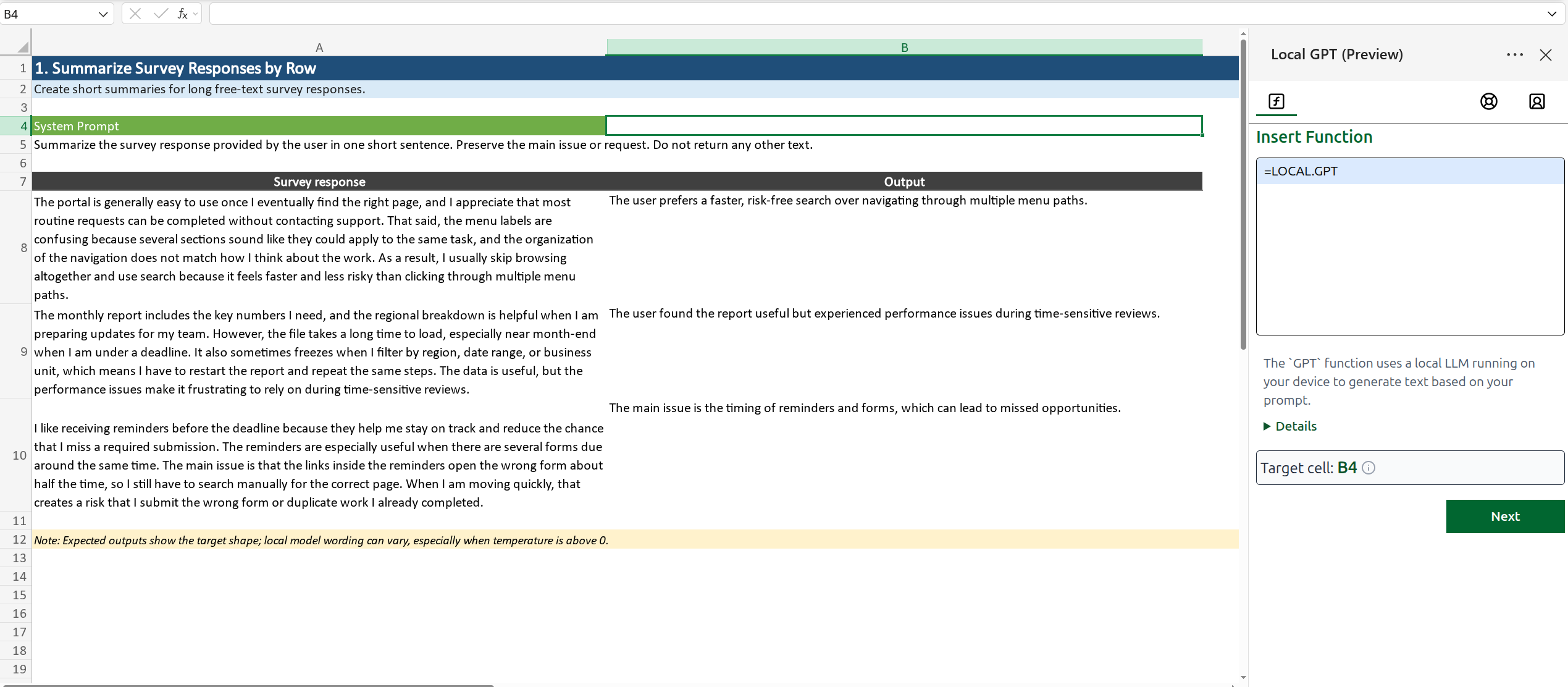
2. Insert a function
Use the taskpane to insert the LOCAL.GPT function into cells as =LOCAL.GPT(...) or simply by typing =LOCAL.GPT in a cell or the formula bar.
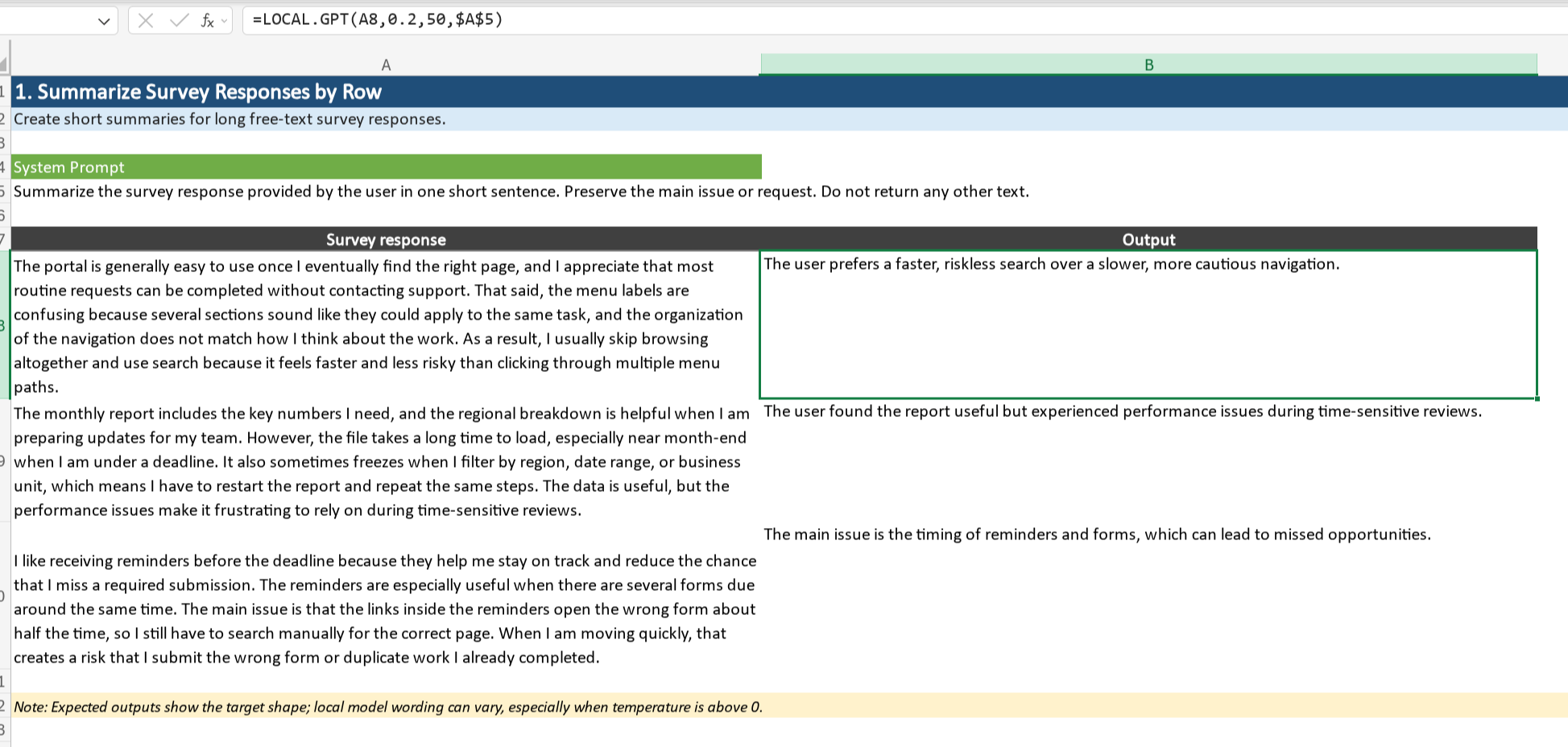
3. Insert result instead of formula
If you don't need to update the output every time the workbook recalculates, insert the result as a static value instead of a formula by checking the "Insert result instead of formula" option in the taskpane.
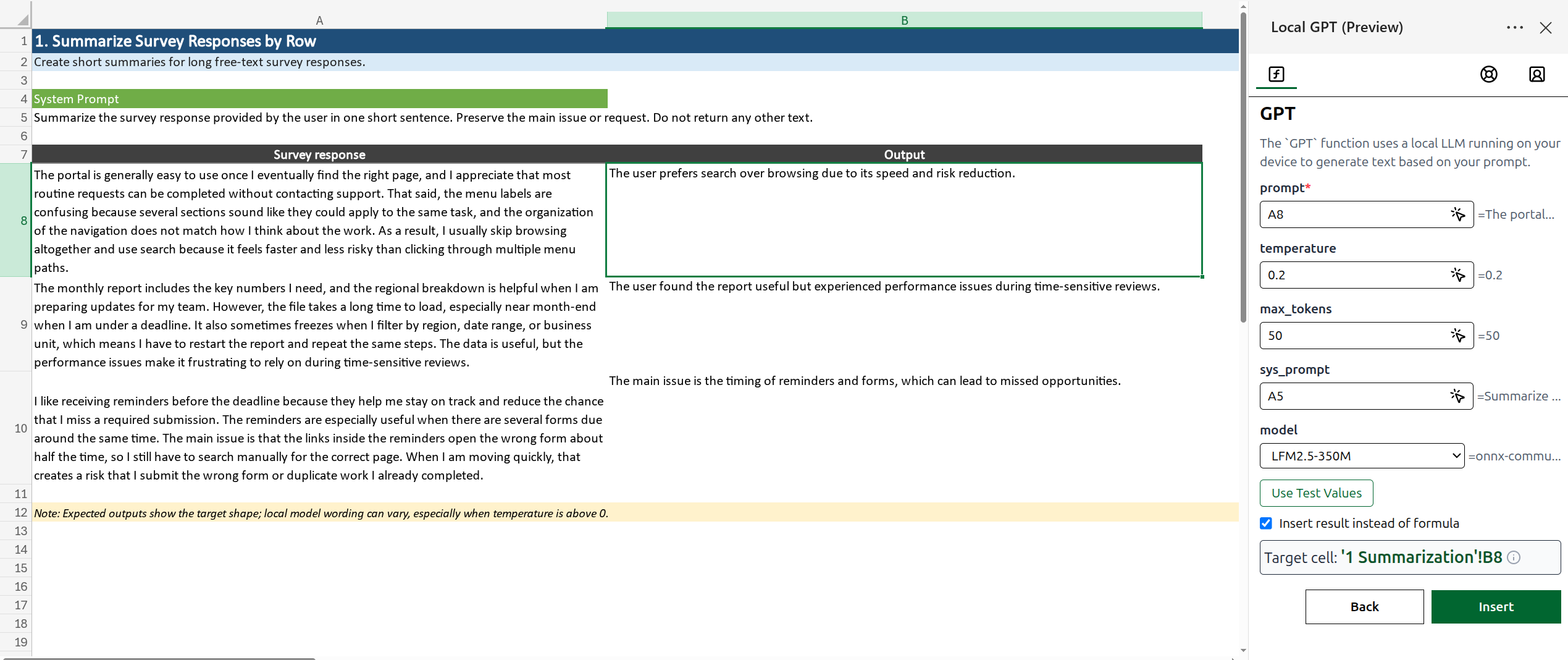
Function Reference
LOCAL.GPT
Generates text from a prompt using a local AI model.
Syntax
=LOCAL.GPT(prompt, [temperature], [max_tokens], [sys_prompt], [model])
| Parameter | Required | Type | Default used when omitted | Description |
|---|---|---|---|---|
prompt | Yes | Text | - | The cell value or text to send as the user message. |
temperature | No | Number | 0 | Controls randomness. Lower values are more deterministic. |
max_tokens | No | Number | 100 | Maximum number of tokens to generate. |
sys_prompt | No | Text | You are a helpful AI assistant. | Sets the model's role or behavior. |
model | No | Text | onnx-community/LFM2.5-350M-ONNX | Selects which local model to use. |
The output is returned as a normal cell value. If you want a final static value instead of a live formula, use the taskpane's insert result action after the output looks right.
prompt is passed to the model as the user message. sys_prompt is passed as the system message, so it is the best place for stable instructions such as the task, allowed labels, output format, and whether extra text is allowed.
Model options
| Display name | Model value | Approx. disk | Approx. RAM | Best for |
|---|---|---|---|---|
| Ternary-Bonsai-1.7B | onnx-community/Ternary-Bonsai-1.7B-ONNX | ~500 MB | ~2 GB | Better reasoning and richer text |
| Ternary-Bonsai-4B | onnx-community/Ternary-Bonsai-4B-ONNX | ~1 GB | ~4 GB | Harder prompts and more detailed responses |
| Qwen3.5-0.8B | onnx-community/Qwen3.5-0.8B-Text-ONNX | ~500 MB | ~2 GB | Balanced quality and speed |
| LFM2.5-350M | onnx-community/LFM2.5-350M-ONNX | ~250 MB | ~1 GB | Fast, lightweight tasks |
Migration Notes
If you used the earlier BOARDFLARE.GPT version, note these changes:
- The function name is now
LOCAL.GPT - The old
optionsargument has been replaced by separate optional arguments - Model selection is now explicit through the
modelargument - The add-in is positioned as a local, privacy-first experience
Examples & Scenarios
Local GPT works best when you give it a clear job and enough workbook context.
Tip: Use direct cell references for the changing row content, and use
sys_promptfor the stable instructions you want every row to follow. Keep row-by-row tasks short, ask for a strict output shape, and use a low temperature when you need repeatable results.
The expected results below show the kind of output to aim for. Local model wording can vary, especially when temperature is above 0, so focus on whether the result follows the requested shape.
The examples cover five common spreadsheet patterns: summarization, classification, extraction, normalization, and validation.
1. Summarize survey responses by row
Survey exports often land in Excel with one long free-text response per row. Local GPT can create a short summary column while keeping the original comments local.
| Cell | Survey response | Formula Output |
|---|---|---|
A2 | The portal is easy to use once I find the right page, but the menu labels are confusing and I usually search instead of browsing. | The portal works, but navigation labels are confusing. |
A3 | The monthly report has the numbers I need, but it takes too long to load and sometimes freezes when I filter by region. | The monthly report has useful data but loads slowly and freezes when filtered. |
A4 | I like getting reminders before the deadline. The only issue is that the reminder links open the wrong form about half the time. | Reminders are helpful, but their links often open the wrong form. |
Formula
=LOCAL.GPT(A2, 0, 70, "Summarize the survey response provided by the user in one short sentence. Preserve the main issue or request. Do not return any other text.")
Use this when: You need a readable helper column before grouping, filtering, or reviewing hundreds of open-ended survey comments.
2. Categorize expense descriptions from a bank export
Bank and card exports often have merchant text that is readable to a person but awkward for formulas. Use a strict label list so the output can feed pivots and charts.
| Cell | Transaction description | Formula Output |
|---|---|---|
A2 | SQ *BLUE BOTTLE COFFEE 427 SAN FRANCISCO CA | Meals |
A3 | ADOBE *CREATIVE CLOUD 800-833-6687 CA | Software |
A4 | LYFT *RIDE WED 8:42PM SAN FRANCISCO CA | Travel |
A5 | USPS PO 056873 BERKELEY CA | Shipping |
Formula
=LOCAL.GPT(A2, 0, 20, "Classify the card transaction provided by the user as one of: Meals, Software, Travel, Shipping, Office Supplies, Other. Return only the category name. Do not return any other text.")
Use this when: You are cleaning expense exports before review. Keep the result as a suggested category and spot-check it before posting or reimbursing anything.
3. Extract invoice details from pasted text
Invoices, statements, and remittance notes often arrive as pasted text in a worksheet. Local GPT can extract one compact field for review without sending the document text to a cloud AI service.
| Cell | Pasted invoice text | Formula Output |
|---|---|---|
A2 | Invoice 8842 from Northwind Traders, dated Apr 12, due May 12. Total due is $4,812.50 for implementation support. | Northwind Traders | 8842 | May 12 | $4,812.50 |
A3 | Contoso Ltd statement shows INV-10391, balance 980.00, payment requested by 2026-05-31. | Contoso Ltd | INV-10391 | 2026-05-31 | $980.00 |
A4 | Receipt from Alpine Ski House for annual subscription. No invoice number listed. Amount paid: $240. | Alpine Ski House | Not stated | Not stated | $240 |
Formula
=LOCAL.GPT(A2, 0, 80, "Extract the vendor, invoice number, due date, and amount from the text provided by the user. Format the response exactly as 'Vendor | Invoice | Due date | Amount'. Use 'Not stated' for missing fields. Do not return any other text.")
Use this when: You are preparing AP, AR, or reconciliation workbooks from copied invoice or remittance text and need structured review fields.
4. Normalize merchant, vendor, or customer names
Local GPT is not a replacement for exact matching, but it can help remove obvious noise from exported names before you review or reconcile them.
| Cell | Original name | Formula Output |
|---|---|---|
A2 | AMAZON MKTPL*8Z91Q2 SEATTLE WA | Amazon Marketplace |
A3 | Amazon Marketplace Payments | Amazon Marketplace |
A4 | THE HOME DEPOT #4712 OAKLAND CA | Home Depot |
A5 | Home Depot Online | Home Depot |
A6 |
Formula
=IF(A2="","",LOCAL.GPT(A2, 0, 30, "Normalize the merchant name provided by the user for reconciliation. Remove store numbers, locations, and transaction codes. Return only the merchant name. Be conservative and do not guess a different merchant. Do not return any other text."))
Use this when: You are preparing transactions, vendor records, or customer lists for manual review, fuzzy matching, or deduplication.
5. Validate rows before review
Validation is different from classification: the model is looking for obvious missing fields, mismatches, or review issues in the row context. Treat the result as a review aid, not an accounting control.
| Cell | Reconciliation row | Formula Output |
|---|---|---|
A2 | Bank: 1,250.00 | Vendor: Comcast | Date: Apr 30 | OK |
A3 | Bank: 890.00 | Vendor: Contoso Ltd | Date: Apr 28 | Review amount mismatch |
A4 | Bank: $410.00 | Ledger: blank | Vendor: Adobe | Date: Apr 15 | Review missing ledger amount |
Formula
=LOCAL.GPT(TEXTJOIN(" | ", TRUE, A2:E2), 0, 50, "Review the reconciliation row provided by the user for obvious missing values, amount mismatches, or fields that need review. Return 'OK' if no issue is obvious. Otherwise return one short review note. Do not return any other text.")
Use this when: You want a helper column that highlights rows a person should inspect first in a reconciliation, AP review, or month-end workbook.
Tips & Best Practices
Start with the default model
The default model is the fastest way to get started. Move to a larger model only when you need better quality or more complex reasoning.
Put reusable instructions in sys_prompt
Local GPT responds best when the cell value is the user message and the repeated instructions live in sys_prompt.
Good:
=LOCAL.GPT(A2, 0, 80, "Summarize the note provided by the user in one sentence. Do not return any other text.")
Less reusable:
=LOCAL.GPT("Summarize this note in one sentence: " & A2)
For workbooks you will reuse, put the sys_prompt in a separate cell and reference it from the formula. For example, put the instructions in F1, then fill this formula down:
=LOCAL.GPT(A2, 0, 80, $F$1)
Use lower temperature for repeatable work
0.0to0.2for summaries, extraction, classification, normalization, and validation0.5for balanced output0.7or higher for brainstorming
Insert results when the output is final
AI formulas can be expensive to recalculate. If you are happy with the answer, paste it as a static value.
Expect a slower first run
The first use of a model downloads it and prepares it for local execution. After that, the model is cached in the browser and runs faster.
Keep outputs cell-sized
Choose scenarios where the result naturally belongs in one worksheet cell, then set max_tokens close to the longest useful answer. A category label might only need 20 tokens, while an extracted field set or one-sentence summary may need 70 to 100.
Using LAMBDA
Using a LAMBDA function lets you create a custom reusable tool that simplifies your formulas and centralizes your prompt instructions in one place. This makes your workbooks easier to maintain and more accessible for others to use without seeing complex underlying logic.
Example:
=LAMBDA(
    ticket,
    LOCAL.GPT(
        "What is the problem this user is having? Support Ticket: " & ticket,
        0.5,
        100,
        "You are an expert summarizer"
    )
)
Name it GETPROBLEM using the Excel Name Manager so you can fill down =GETPROBLEM(A2) throughout your sheet.
With Array Values
The ARRAYTOTEXT function allows you to inject dynamic context from worksheet ranges directly into your prompts for tasks like classification or providing examples. This ensures your model instructions stay in sync with your data as you update or expand your lists of tags and categories.
Example: If C4:E4 contains tags like "Billing", "Technical", "Sales":
=LOCAL.GPT(
    "Which of these tags: (" & ARRAYTOTEXT(C4:E4) & ") best matches this support ticket: " & C3,
    0,
    5,
    "You are classifying text, only return the value of the tag that best matches the text and nothing more."
)
Troubleshooting
The formula shows #NAME?
Make sure the taskpane is available and the function is entered as =LOCAL.GPT(...), not the older BOARDFLARE.GPT name.
The first response is slow
That usually means the model is downloading or being initialized. Leave the taskpane open and try again after the first run completes.
The output is too creative or too rigid
Adjust temperature.
- Lower it for stricter, more consistent responses
- Raise it for idea generation and open-ended writing
I want a different style or role
Use sys_prompt to set the model's behavior.
Example:
=LOCAL.GPT(A2, 0.2, 120, "Summarize the note provided by the user as a concise review comment. Preserve factual details. Do not return any other text.")
Blank rows are generating output
Wrap the formula in IF so empty cells stay empty.
Example:
=IF(A2="","",LOCAL.GPT(A2, 0, 20, "Classify the request provided by the user as Bug, Billing, Account, Feature Request, How-to, or Other. Return only the label. Do not return any other text."))
The model is too large for my machine
Use a smaller model like LFM2.5-350M or Qwen3.5-0.8B. Larger models need more memory and usually run more slowly.
FAQ
Does my data go to the cloud?
No. The text generation happens locally on your device after the model is downloaded.
Why is the first run slower than later runs?
The model has to download, initialize, and optimize itself the first time you use it. Later runs are faster because the model is cached locally.
Can I use Local GPT offline?
Yes, after the model has been downloaded and cached. You still need the initial download the first time you use each model.
What hardware do I need?
A browser with WebGPU support and enough memory for the selected model. Smaller models are better for lighter hardware.
Can I ask for structured output?
Yes. Ask for a markdown table, a bulleted list, or one item per line when you want results that are easy to paste into Excel.