Sentiment Analysis for Excel
Sentiment Analysis for Excel runs text-analysis inference in the browser. The text supplied for sentiment analysis is processed locally rather than sent to Boardflare or an external AI inference API; transformer model files are downloaded to the browser cache when first needed.
The sentiment calculation path is local after required model assets are available. This keeps the analyzed text out of a cloud inference service while still allowing the add-in to use the network for application or model assets.

Quick Start
1. Open the taskpane
After installation, click Sentiment Analysis in the Home ribbon. The taskpane provides a list of available functions and experimental features.
2. Insert the function
You can insert the sentiment analysis formula using the taskpane or by typing directly into any cell: =BOARDFLARE.SENTIMENT(A2)
3. Explore the results
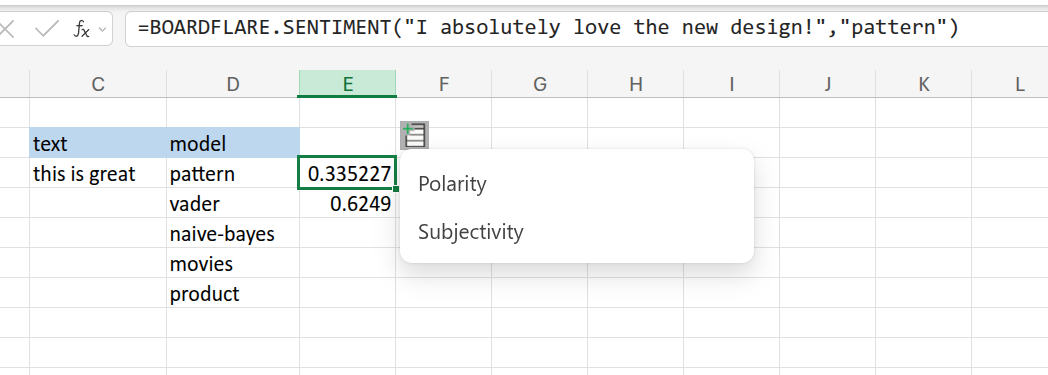
The function returns a Data Type. Click the icon in the cell to view the full sentiment card with all available scores and labels.
Function Reference
SENTIMENT
Analyzes the sentiment of a text string or range of cells.
Syntax
=BOARDFLARE.SENTIMENT(text, [sentiment_model])| Parameter | Required | Type | Default | Description |
|---|---|---|---|---|
text |
Yes | Range | - | A single cell or 2D range of text to analyze. |
sentiment_model |
No | String | "pattern" |
The engine to use for analysis. |
Models
The Sentiment add-in provides a variety of engines, ranging from fast lexicon-based analyzers to state-of-the-art transformer models. Each model returns a unique set of fields within the Data Type.
Pattern (Default)
The Pattern engine is a fast, lexicon-based analyzer. It is the best choice for general-purpose analysis where processing speed is a priority.
- When to use: Analyzing large datasets (thousands of rows) where deep contextual understanding is less critical than performance.
- Fields:
.Polarity(Primary Value): Sentiment score from -1.0 (negative) to 1.0 (positive)..Subjectivity: Measures how much of the text is based on personal opinion versus factual information.- 0.0 (Objective): The text is purely factual (e.g., “The phone has a 6-inch screen.”)
- 1.0 (Subjective): The text is highly opinionated (e.g., “The phone’s screen is absolutely beautiful.”)
- Tip: This is particularly useful for filtering datasets. For example, you can use a formula like
=FILTER(A2:A100, B2:B100.Subjectivity > 0.5)to focus your analysis only on rows where the user is expressing an opinion, ignoring purely factual statements.
VADER
VADER (Valence Aware Dictionary and sEntiment Reasoner) is specifically tuned for social media sentiment. It is uniquely sensitive to both polarity (positive/negative) and intensity (strength) of emotion.
- When to use: Analyzing tweets, product comments, or short reviews that frequently use slang, emojis, or heavy punctuation (e.g., “The service was GREAT!!! :)”).
- Fields:
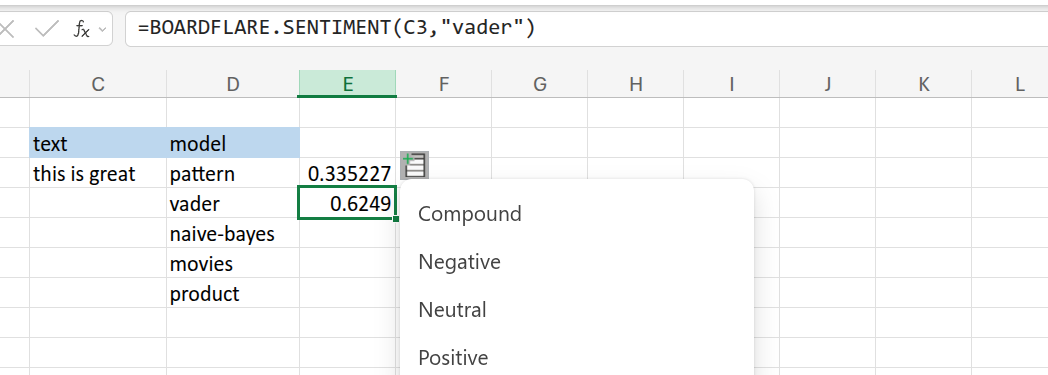
.Compound(Primary Value): A normalized, weighted composite score from -1.0 to 1.0. This is the primary metric for VADER..Positive: The proportion of the text that falls into the positive category..Neutral: The proportion of the text that falls into the neutral category..Negative: The proportion of the text that falls into the negative category.
Naive Bayes
A machine learning model trained on a large corpus of movie reviews. It uses statistical classification to determine sentiment.
- When to use: Categorizing longer, more structured text where simple keyword matching might fail, but you don’t want the resource overhead of a full transformer model.
- Fields:
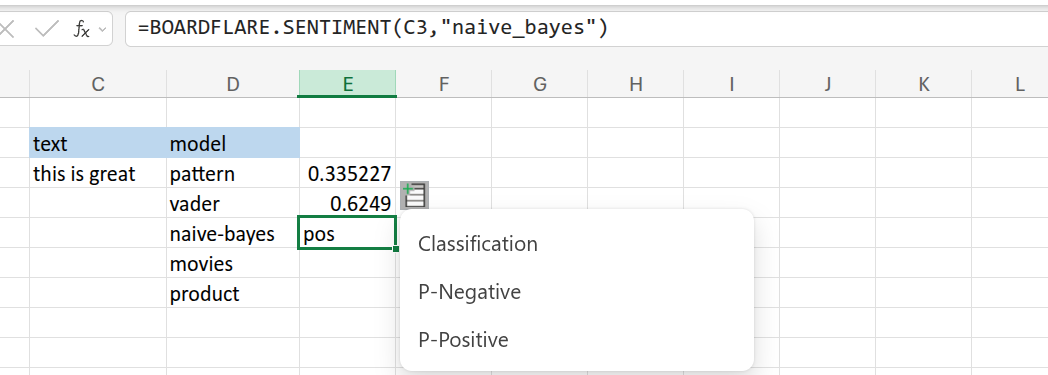
.Classification(Primary Value): The predicted label (posorneg)..P-Positive: The calculated probability that the text is positive..P-Negative: The calculated probability that the text is negative.
BERT Models (Transformers)
State-of-the-art transformer models provide the highest level of accuracy by understanding the context and relationship between words in a sentence. These models run entirely in your browser using transformers.js.
- When to use: When accuracy is paramount and your dataset is small enough to accommodate the longer processing time. These models are far superior at detecting sarcasm, double negatives, and nuanced language.
- Available Variants:
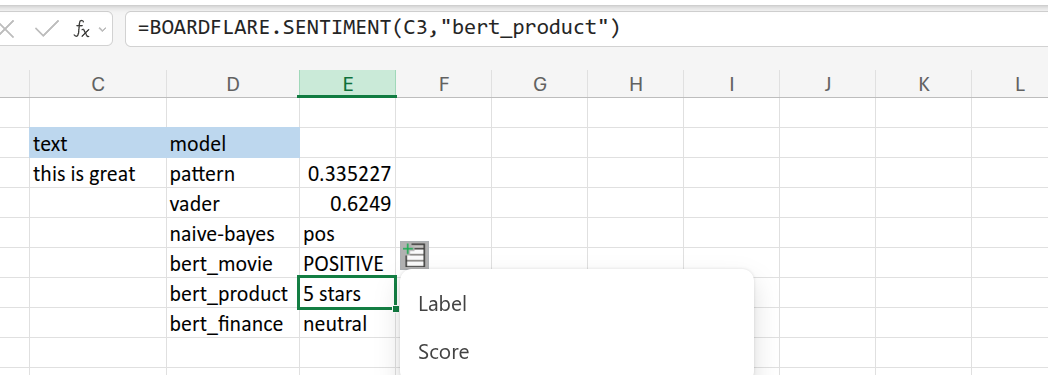
- Movie Reviews: High-accuracy general English sentiment. Returns uppercase labels like
POSITIVEorNEGATIVE. - Product Reviews: Optimized for product feedback. Returns a star-rating sentiment format (e.g.,
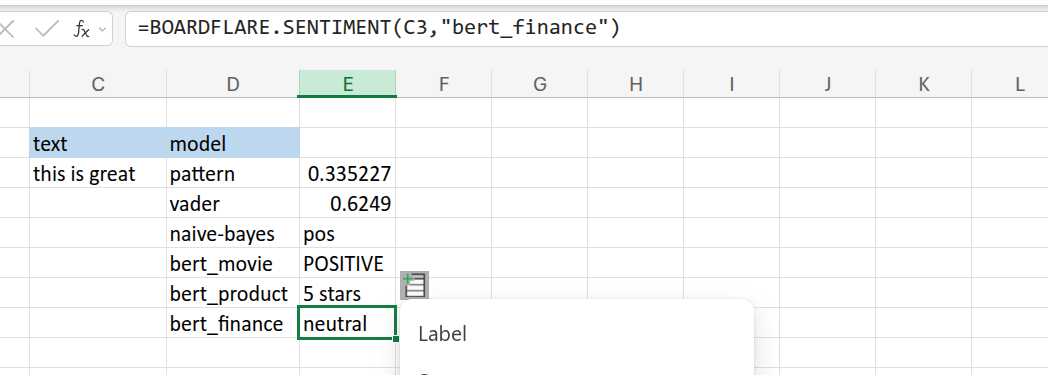
1 starto5 stars). - Finance News: Specifically trained for financial news and earnings reports. Returns lowercase labels like
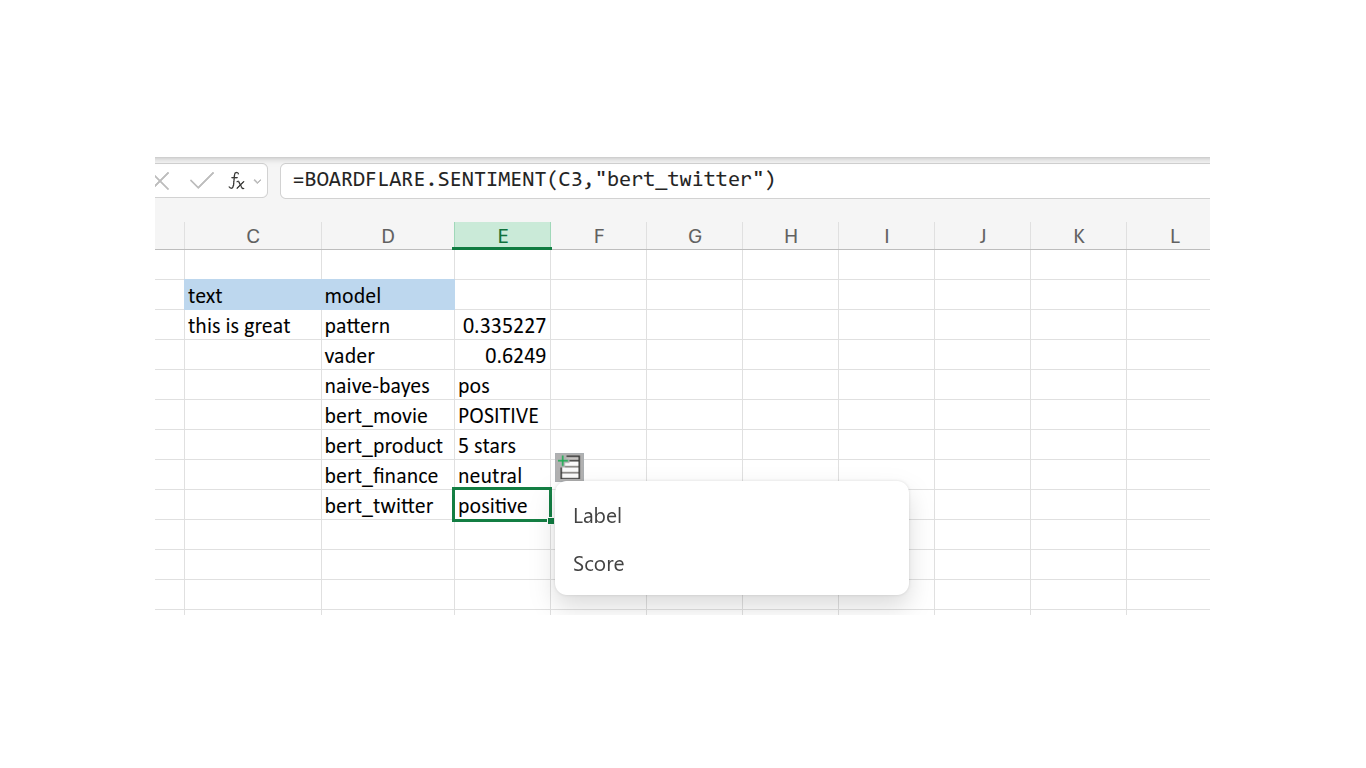
positive,negative, orneutral. - Twitter Messages: Specifically tuned for social media language. Returns lowercase labels like
positive,negative, orneutral.
- Movie Reviews: High-accuracy general English sentiment. Returns uppercase labels like
- Fields:
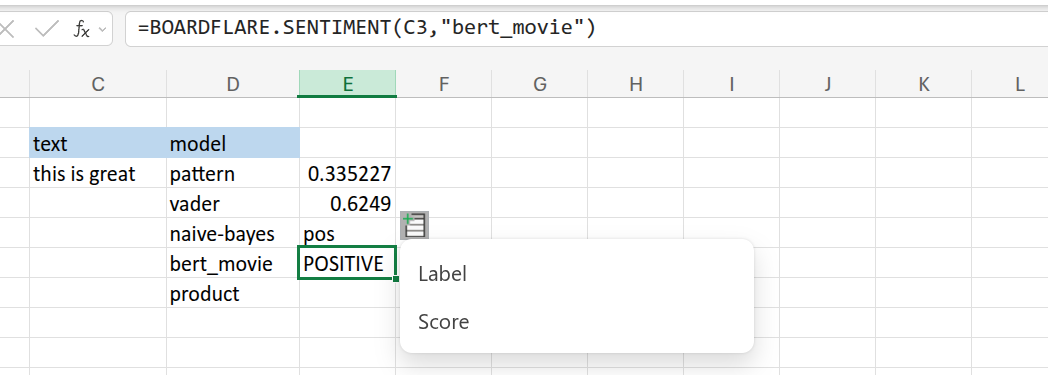
.Label(Primary Value): The predicted sentiment label (e.g.,POSITIVE,NEGATIVE,neutral, or5 stars)..Score: The confidence score (probability) of the predicted label, ranging from 0.0 to 1.0.
Aspect-Based Sentiment (Experimental)
Unlike standard sentiment analysis which gives a single score for a sentence, ABSA identifies specific entities (aspects) and the sentiment directed at each.
- When to use: When a single sentence contains multiple conflicting opinions. For example, in the sentence “The food was great but the service was slow”, ABSA will identify both “food” (positive) and “service” (negative).
- Fields:
.Aspect: The specific entity identified in the text..Sentiment: The sentiment associated with that specific aspect..Index: The original row index from your input data, allowing you to map multiple aspects back to a single source row.
Working with Data Types
The SENTIMENT function returns a rich Data Type instead of a single string. This allows you to store multiple scores in a single cell and extract them using the dot operator.
Extraction Examples
If your sentiment result is in cell B2, you can use these formulas to extract specific fields: - =B2.Polarity (For Pattern model) - =B2.Compound (For VADER model) - =B2.Label (For BERT models) - =B2.Score (Confidence score for BERT models)
Experimental: Aspect-Based Sentiment (ABSA)
Traditional sentiment analysis (like Pattern or BERT) calculates a single “net” score for an entire block of text. This often leads to inaccurate or “neutral” results when a user expresses multiple conflicting opinions in the same sentence.
Aspect-Based Sentiment Analysis (ABSA) solves this by identifying specific entities (aspects) and assigning an individual sentiment to each. This capability is based on the Instruct-ABSA model.
Why use ABSA?
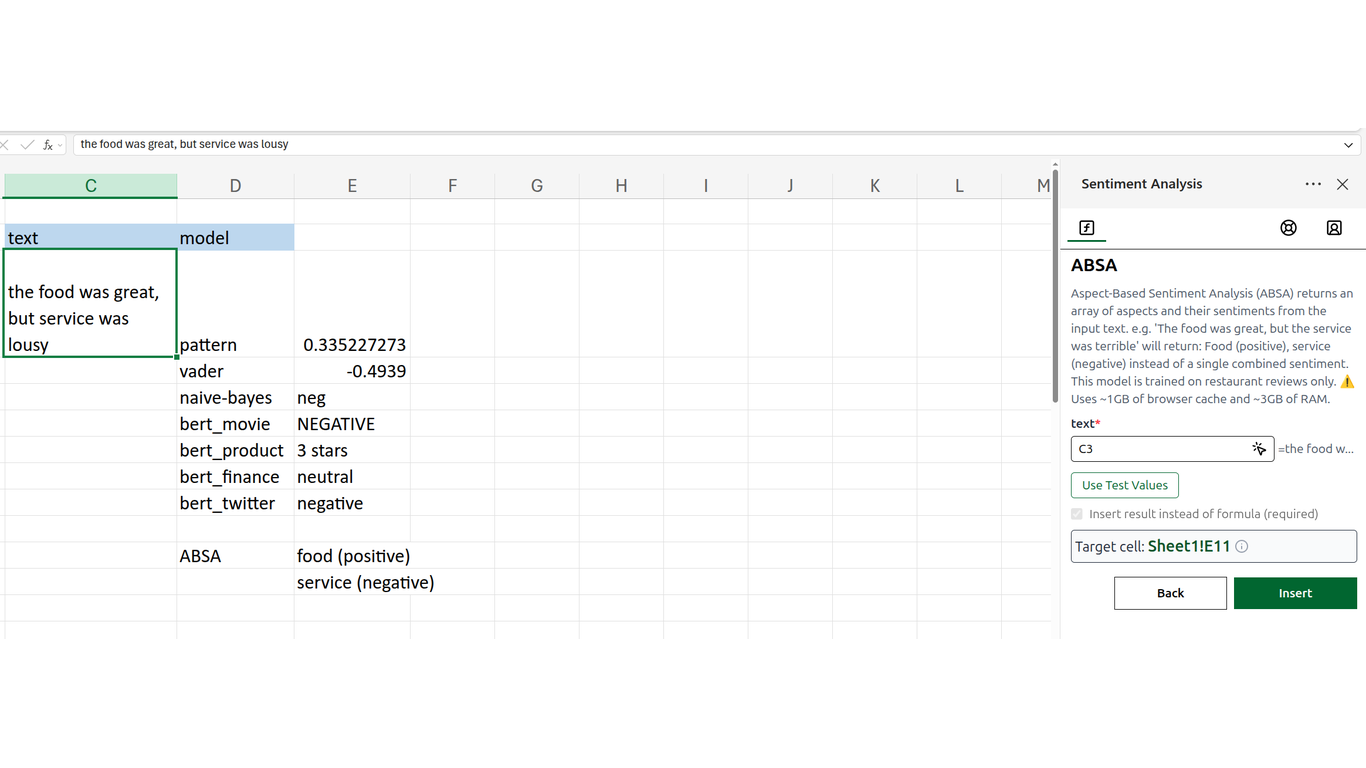
Consider the review: “The food was great, but the service was lousy.” - Traditional Models: May return a “neutral” or “conflicted” result (e.g., 3 stars or a low positive score) because the positive and negative sentiments cancel each other out. - ABSA: Correctly disaggregates the feedback into two distinct results: food (positive) and service (negative).
Key Differences
- Granularity: ABSA is the only model capable of pinpointing exactly what the user liked or disliked within a complex sentence.
- Taskpane-Only: Unlike the
SENTIMENTfunction, ABSA is currently a taskpane-only feature. It processes your selected text and inserts the identified aspects as static values in your worksheet. - Domain Specific: The current experimental model is optimized specifically for restaurant reviews. Non-restaurant related text (e.g., software feedback, financial news) will likely not extract aspects or assign sentiment correctly. If you would like to see other domains supported for ABSA, please contact us.
[!WARNING] ABSA is resource-intensive, requiring approximately 1GB of browser cache and 3GB of RAM. It is recommended for targeted analysis of key feedback rather than large-scale batch processing.
Examples & Scenarios
1. Customer Feedback Analysis (Pattern)
Quickly gauge the general sentiment of a large list of customer comments.
| Cell | Comment | Polarity | Subjectivity |
|---|---|---|---|
A2 |
I absolutely love the new design! | 0.625 | 0.600 |
A3 |
The update is okay, but it’s a bit slow. | 0.125 | 0.450 |
A4 |
This is the worst experience I’ve had. | -1.000 | 1.000 |
Formula
=BOARDFLARE.SENTIMENT(A2, "pattern")2. Financial Sentiment (FinBERT)
Analyze earnings call snippets or financial news for market sentiment.
| Cell | News Snippet | Label | Score |
|---|---|---|---|
A2 |
Profits exceeded expectations by 20%. | positive | 0.985 |
A3 |
Regulatory hurdles may delay the merger. | negative | 0.892 |
A4 |
The company maintained its annual guidance. | neutral | 0.998 |
Formula
=BOARDFLARE.SENTIMENT(A2, "bert_finance")Tips & Best Practices
Privacy First
The sentiment models run locally in your browser, so the text supplied for inference is not sent to Boardflare or a third-party AI inference provider. Initial transformer-model downloads still use the network. Whether a dataset containing sensitive internal information or PII is appropriate for the add-in also depends on your organization’s browser, device, and data-handling policies.
Performance vs. Accuracy
- Use Pattern or VADER for large datasets where speed is critical.
- Use BERT models for high-accuracy requirements or specific domains (Finance, Twitter).
- Transformer models (BERT) are larger and will take longer to initialize on the first run as they download to your browser’s local cache.
Cleaning Data
For the best results, ensure your text is clean. Remove HTML tags or excessive boilerplate text before analysis.
Troubleshooting
The formula returns #VALUE! or #NAME?
Ensure the Sentiment taskpane is open. Try refreshing the page.
The first calculation is very slow
When using a BERT model for the first time, the add-in must download the model files (~100 MB). This only happens once; subsequent uses will load the model from your local cache.
Memory Issues
If you are using the BERT or ABSA models and your browser becomes unresponsive, you may be low on RAM. Try closing other tabs or switching to the lighter Lexicon models (Pattern, VADER).
3. Social Media Monitoring (VADER)
Analyze tweets or short posts that include emojis and informal language.
A2A3A4Formula