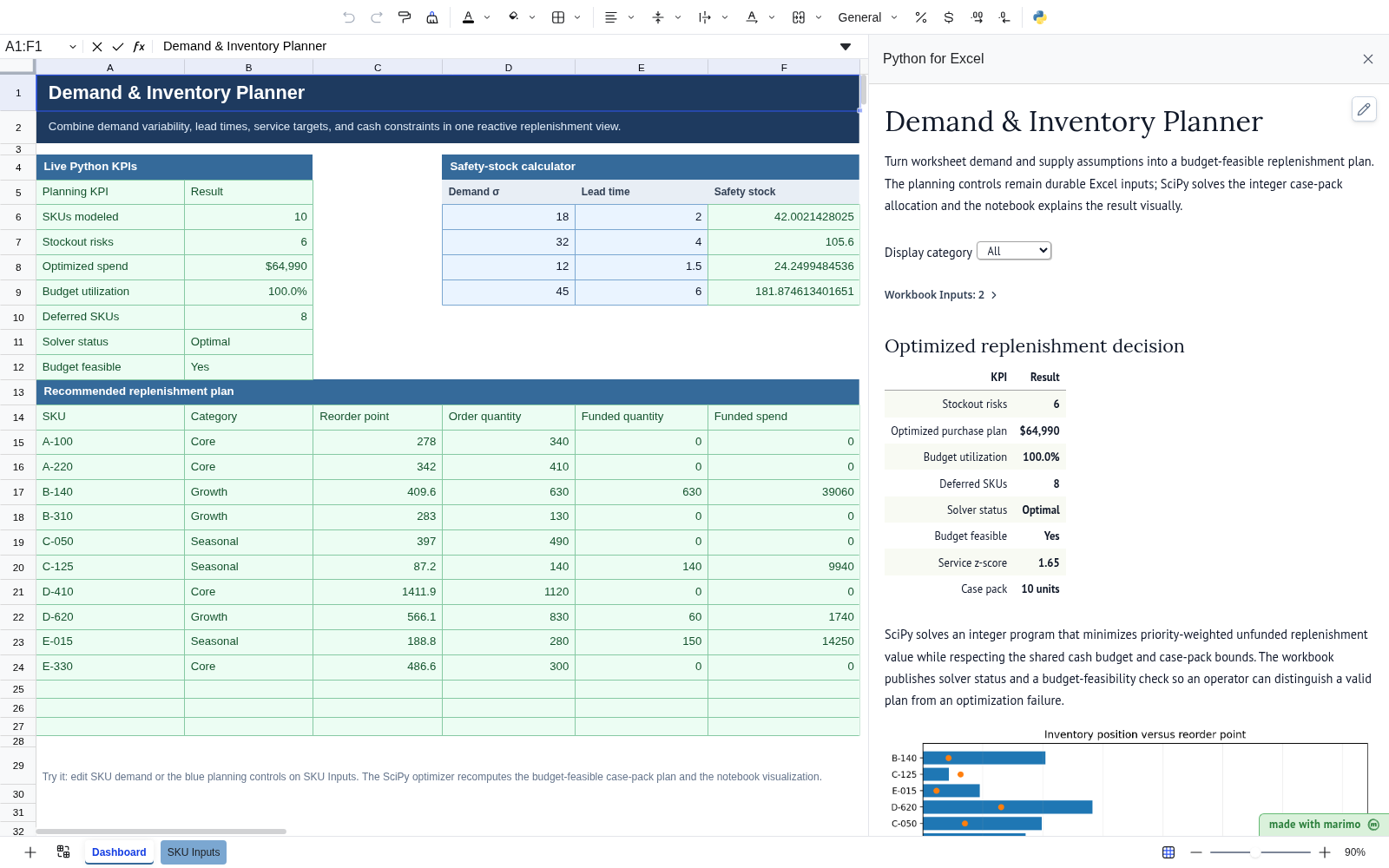
App Mode and Sharing
App mode is an optional presentation of the same notebook, not a separate application or security boundary. Use it when another user should interact with controls and outputs without the full authoring surface, then validate the saved workbook in Excel before distribution.
App mode
App mode is an optional presentation of the same notebook. It is useful when a completed analysis has become a repeatable internal tool and another user should focus on controls, explanations, tables, and charts rather than editing Python source.
It is not a separate application project and it is not required to receive value from the notebook.
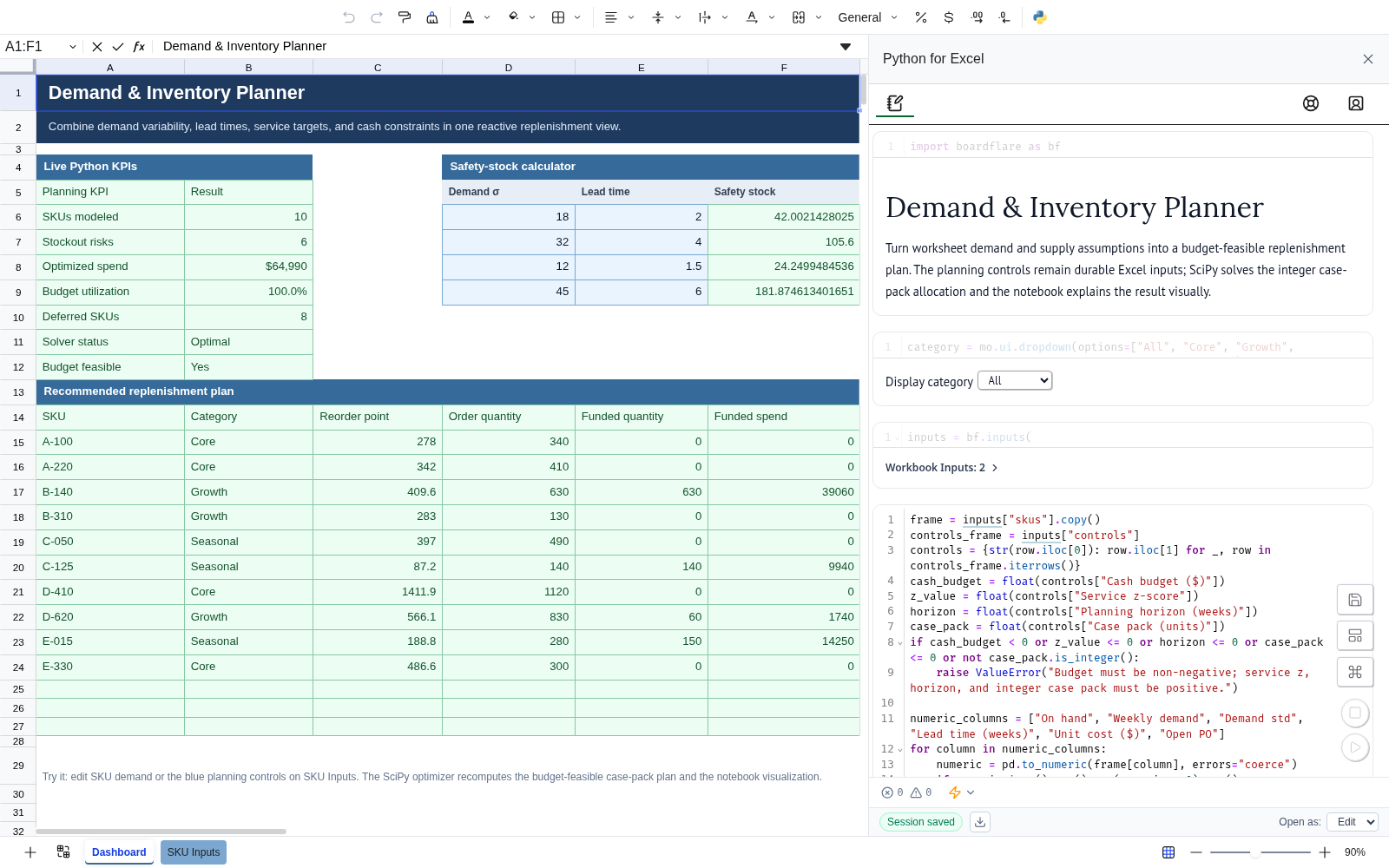
Choose Open as: App
In an Edit session:
- save the notebook at least once;
- choose App from Open as: in the Boardflare footer;
- save the notebook again;
- wait for Boardflare to report Saved;
- reopen the notebook.
The next session opens in the focused app-style presentation.
Changing Open as does not switch the current session. The setting is a saved startup preference.
Return to editing
In App mode, use the pencil/edit action to open a fresh Edit session for the current session.
That action does not silently change the saved opening preference. If the workbook should open in Edit mode next time, choose Open as: Edit and save that preference from an Edit session.
What App mode changes
App mode hides the normal Boardflare navigation/status footer and presents the notebook as a full-pane read-style experience. Notebook controls and reactive outputs remain useful because they are part of the notebook itself.
A good App-mode notebook usually emphasizes:
- clear instructions and Markdown;
- controls with business labels;
- important result tables and charts;
- validation or warning messages;
- minimal implementation detail in the visible presentation.
What App mode does not change
App mode is not:
- source-code protection;
- a permissions boundary;
- a separate deployed application;
- a replacement for reviewing executable workbook source;
- a requirement for
BF.OUTPUT()orBF.FUNCTION().
The saved notebook source still travels with the workbook and should be trusted like other executable code.
When to use it
Use App mode when the notebook has become a repeatable interactive tool for someone who does not need the authoring surface.
Stay in Edit mode when the primary job is analysis, model development, debugging, explanation, or ongoing notebook maintenance.
See Sharing and trust before distributing a workbook that contains executable notebook source.
Sharing and trust
A Boardflare notebook can remain personal analysis or be shared with other workbook users. When you distribute a notebook-enabled workbook, treat the saved Python source as executable code and validate the workflow another user will open.
What is saved and what is rebuilt
In Excel, Boardflare stores notebook source and the preferred Edit/App opening presentation in workbook Custom XML. A successful save writes the content, reads it back, and verifies that the stored source and metadata match.
The workbook does not persist a live Python kernel, Python objects, active function invocations, reactive state, or output/function registries.
Recipient requirements
A recipient needs:
- the workbook;
- the Python for Excel add-in;
- network access to the add-in/notebook assets required by the deployment;
- network access to any packages or external APIs the authored notebook itself uses;
- any credentials/permissions required by those external services;
- organizational permission to run the workbook and its executable Python source.
The recipient does not need a separate desktop Python installation.
If an organization blocks the add-in, external package hosts, or a service the workbook relies on, the notebook may not start or may start with a degraded feature. Treat those dependencies as part of the workbook's operating requirements.
Cold start from worksheet formulas
A workbook can need the Python runtime before the user has opened the visible Notebook tab.
During this sequence, Excel can show #BUSY!. That is normal while the notebook/publication registry is still starting. The task pane does not have to be visible for normal formula cold start.
App mode
App mode presents the same saved notebook as a simplified interactive experience and hides code cells during normal use. It is useful when an analysis has become a repeatable tool and another user should focus on inputs, controls, explanations, and outputs rather than the implementation.
App mode is not:
- a permissions boundary;
- source encryption;
- a DRM mechanism;
- a guarantee that the recipient cannot return to Edit mode.
Do not put a secret in notebook source on the assumption that App mode hides it.
Executable workbook trust
Notebook source is executable Python and can run automatically when a trusted workbook opens in App mode. Before using a workbook with sensitive data, know:
- who authored and reviewed it;
- which worksheet ranges it reads;
- which outputs/functions it publishes;
- which packages it downloads;
- which external APIs it calls;
- which data those requests can contain;
- who owns the notebook when business rules change.
Cross-origin notebook isolation reduces unintended capability access; it does not make arbitrary authored Python trustworthy. See Security and data flow.
Expected startup/recovery states
| State | Meaning | What a user should do |
|---|---|---|
#BUSY! | Notebook/publication is still starting | Wait; if persistent, open Notebook to inspect status |
| Notebook not running | Session stopped or failed | Retry/restart the notebook session |
| Unknown output/function | Requested name was not published | Contact author or inspect current bf.publish() in Edit mode |
| Package/network error | Authored dependency failed | Check connectivity, compatibility, CORS/auth, then retry |
| Save/source error | Stored notebook could not be loaded or verified | Use recovery/reset only when discarding/replacing saved source is acceptable |
Pre-sharing checklist
- Save until Boardflare reports the notebook saved.
- Close and reopen the workbook.
- Verify the intended Edit/App presentation.
- Verify every
BF.OUTPUT()consumer. - Verify every
BF.FUNCTION()consumer, including optional arguments used in the workbook. - Change representative workbook inputs and confirm reactive updates.
- Test invalid/missing inputs and the user-facing error message.
- Test unavailable network services if the notebook calls APIs.
- Test package loading in a fresh session.
- Record required external-service access and credentials setup outside the workbook source.
- Add user instructions and an owner/contact.
- Have a second user open and use the workbook without author intervention.
Validate in Excel, not only the browser demo
The public web demo uses Univer as the spreadsheet host. It shares the same notebook input/output concepts, but Excel has different persistence and streaming custom-function lifecycle behavior.
Before distributing an Excel workbook, validate save/reopen, cold start, formula results, and recipient behavior in the actual Excel add-in.