flowchart LR
    subgraph Legacy[Legacy Editor path]
        Code[Python function saved in workbook settings]
        Lambda[Excel Name Manager LAMBDA]
        Exec[BOARDFLARE.EXEC]
        Worker[Legacy Pyodide runpy worker]
        Code --> Lambda --> Exec --> Worker
    end

    subgraph Notebook[Notebook path]
        Source[Saved notebook source]
        Publish[Displayed bf.publish model]
        BF[BF.FUNCTION]
        Callable[Live Python callable]
        Source --> Publish
        BF --> Publish --> Callable
    end
Legacy Functions Editor
Maintain Boardflare’s retained workbook-stored Python functions, BOARDFLARE.EXEC formulas, package metadata, and conversion rules.
Python for Excel retains the Legacy Functions Editor for workbooks created with Boardflare’s earlier standalone-function workflow. It is a compatibility surface, not the primary notebook programming model.
For new Python analysis and new worksheet-callable Python, prefer the Notebook with bf.publish(functions=...) and BF.FUNCTION().
The Editor is shown automatically when the current workbook already contains legacy functions. You can also show it for all workbooks with Always show legacy editor in Support. That preference is local to the add-in/browser profile; it does not change the workbook itself.
How legacy execution differs from notebook functions
A legacy Editor function is stored as a workbook function object and registered through Excel Name Manager. A notebook function remains a live callable owned by a displayed bf.publish() model. The two paths are intentionally independent.
Quick example
def hello(name):
    """Return a greeting."""
    return f"Hello {name}!"
After save, Excel can call the registered Name Manager function directly:
=HELLO("World")Internally, the Name Manager entry wraps the function with a LAMBDA that delegates to BOARDFLARE.EXEC.
Create and save a function
- Open the Editor tab.
- Write one Python function with explicit parameters.
- Save the function.
- Boardflare parses the source and stores the resulting function metadata in workbook settings.
- Boardflare creates or replaces the Excel Name Manager LAMBDA for that function.
- Use the function directly in a worksheet cell or insert it through the function dialog.
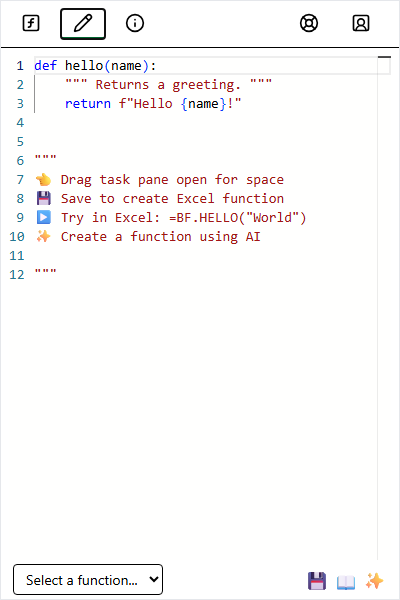
Saving is transactional across the two workbook representations. If Name Manager registration fails after the settings write, Boardflare attempts to roll back the saved settings object rather than leaving a partially registered function.
Source shape supported by the legacy parser
The retained parser supports ordinary synchronous or asynchronous function definitions with explicit parameters and trailing Python defaults.
async def lookup_rate(code, fallback=1.0):
    ...
Legacy parser restrictions include:
*argsand**kwargsare not supported;- parameter names containing digits are rejected by the retained parser;
- Microsoft Python-in-Excel
xl("A1")references are not supported inside Editor functions; - the first top-level function definition is the function that is registered;
- external package declarations must use the exact
external_packages = [...]form described below.
These restrictions belong to the compatibility Editor and should not be assumed to apply to notebook-published BF.FUNCTION() callables.
What is stored in the workbook
The function object saved in workbook settings includes the source and parsed metadata required by the legacy runtime, including fields such as:
name;code;- parsed parameters and defaults;
- generated invocation/result line;
- imports;
external_packages.
These stored fields are a compatibility contract for existing workbooks.
The corresponding Name Manager formula is conceptually:
=LAMBDA(a, [b], BOARDFLARE.EXEC("my_function", a, IF(ISOMITTED(b), "__OMITTED__", b)))Boardflare preserves the original stored Python function name for lookup while using Excel-compatible Name Manager naming. It also retries Name Manager registration with the workbook’s alternate formula separator when necessary.
Arguments passed to Python
The legacy BOARDFLARE.EXEC adapter forwards Excel arguments to the retained runpy worker without introducing the notebook value contract. The worker then normalizes JavaScript/Pyodide null values and range shapes.
| Worksheet value | Legacy Python value |
|---|---|
| Number | Python numeric value (normally a float from Excel) |
| Text | str |
| Boolean | bool |
| Explicit empty string | "" |
| Empty/null value | normalized to None before generated invocation |
One-cell range [[x]] |
unwrapped to x |
| Multi-cell range | two-dimensional Python list |
Optional Name Manager parameters use the "__OMITTED__" sentinel. The generated Python invocation omits parameters whose normalized value is None, so an omitted/blank optional argument uses its Python default. A required parameter that disappears this way can produce a normal Python missing-argument error. Pass "" when an explicit blank string is part of the function’s contract.
Results returned to Excel
The legacy return contract is different from the notebook BF.OUTPUT()/BF.FUNCTION() value contract.
Important None rule
A top-level None return is an error. If a legacy function should return one blank cell, return an empty string instead:
def maybe_value(flag):
    if not flag:
        return ""
    return 42
None values inside a supported list/table are converted to blank strings for Excel compatibility.
Supported result shapes
| Python result | Legacy worksheet result |
|---|---|
int, finite/ordinary float, str, bool |
one cell |
datetime / date |
Excel serial date value |
one-dimensional list or tuple |
one spill row |
| rectangular two-dimensional list/tuple | spill range |
pandas DataFrame |
values as a two-dimensional spill range |
pandas Series |
values as a spill column |
| NumPy scalar | one cell |
| one-dimensional NumPy array | one spill row |
| two-dimensional NumPy array | spill range |
| supported Excel rich-value dictionary | one cell / nested supported position |
Supported rich-value dictionaries currently use type values Entity, Double, Boolean, or String.
Legacy conversion also turns nested None into "". NaN and infinity are converted to the strings "NaN", "Infinity", and "-Infinity" rather than using the stricter notebook result rejection rules.
Empty lists, ragged matrices, mixed scalar/row list shapes, unsupported dictionaries, and arbitrary Python objects produce an execution/value error.
External packages
The legacy worker automatically asks Pyodide to load packages detected in imports. For additional compatible PyPI packages, declare a top-level list of strings:
external_packages = ["textdistance"]

import textdistance


def similarity(left, right):
    return textdistance.jaro_winkler(left, right)
At execution time, the worker passes external_packages to micropip.install(...) before running the function source. The package therefore must be installable in the legacy browser/Pyodide environment; desktop-only native dependencies can still fail.
This mechanism is specific to the Legacy Editor. For notebook package guidance, see Packages and environment.
Insert a function
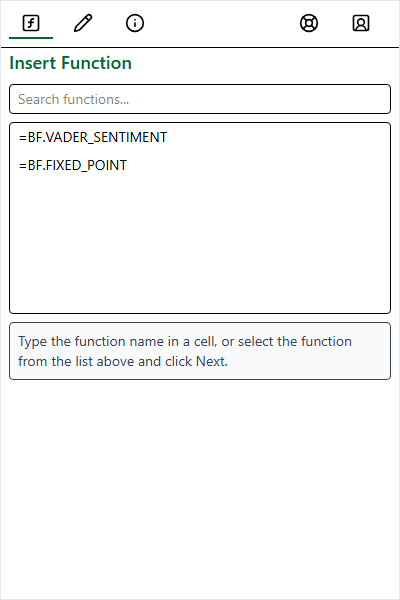
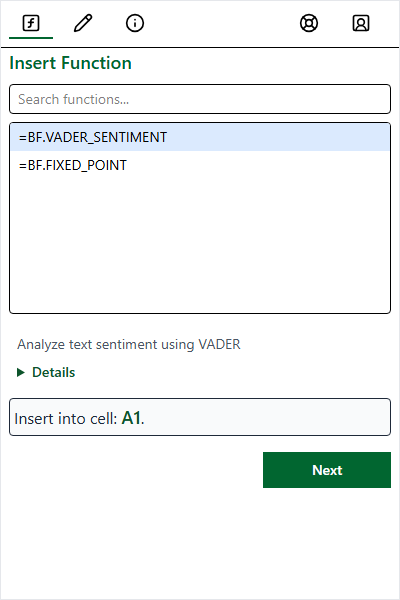
Enter values directly or select worksheet ranges:
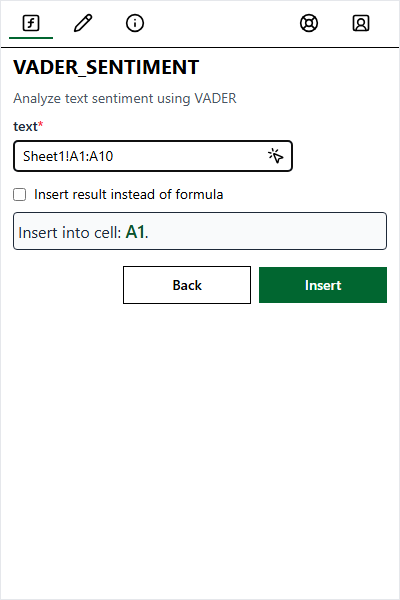
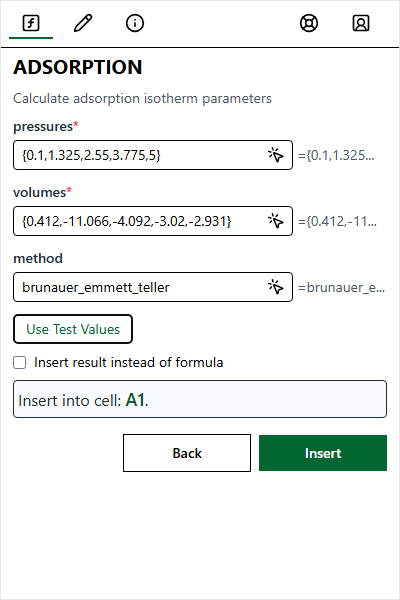
Insert options
| Option | Behavior | Best for |
|---|---|---|
| Insert as Formula | Inserts the registered live worksheet formula. | Existing reusable legacy calculations |
| Insert as Result | Calculates once and writes the static value. | Frozen outputs |
| Insert as Excel PY | Inserts a native Microsoft =PY(...) formula when the selected function is compatible. |
Workbooks standardized on Microsoft Python in Excel |
Console and errors
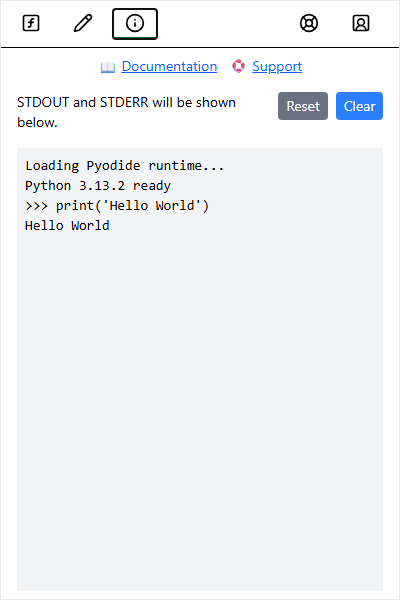
The Editor captures worker standard output/error and execution failures in its console surface:
For multi-step analysis, reactive workbook inputs, charts, notebook controls, App mode, or new worksheet-callable Python, use the Notebook workflow rather than extending the legacy execution model.