stateDiagram-v2
[*] --> Saved: saved workbook source or bundled starter
Saved --> Staged: upload .py
Staged --> Saved: Marimo Save + verified workbook persistence
Staged --> Saved: startup failure + Restore saved notebook
Saved --> Starter: Reset saved notebook
Getting Started
Open the starter notebook, connect it to Excel, publish results and functions, save with the workbook, and import or export Marimo .py source safely.
The bundled starter notebook is the fastest way to learn Boardflare Python for Excel. It already contains workbook inputs, a reactive control, a chart, a published result, and a published function, so the tutorial teaches the product by using the notebook you actually receive.
Starter notebook walkthrough
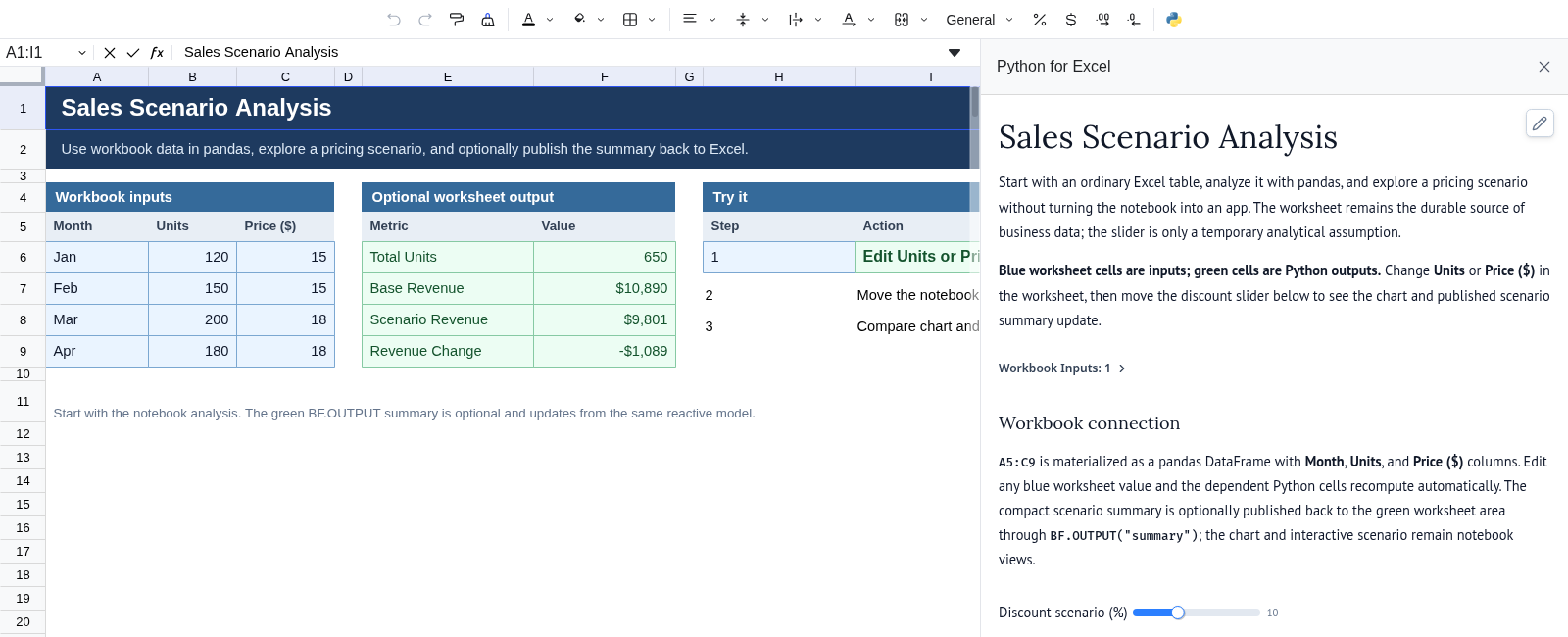
The default notebook is a working tutorial. It starts with built-in sales data, a reactive discount control, a chart, a published worksheet result, and a published Python function. You do not need to write code before seeing the notebook run.
This walkthrough connects that same notebook to live Excel data and saves it with the workbook.
1. Open the Notebook
Install Boardflare Python for Excel from Microsoft AppSource, open the add-in, and select Notebook.
If the workbook does not already contain saved notebook source, Boardflare loads the bundled starter. It uses sample data until a compatible table exists in worksheet range A1:C7.
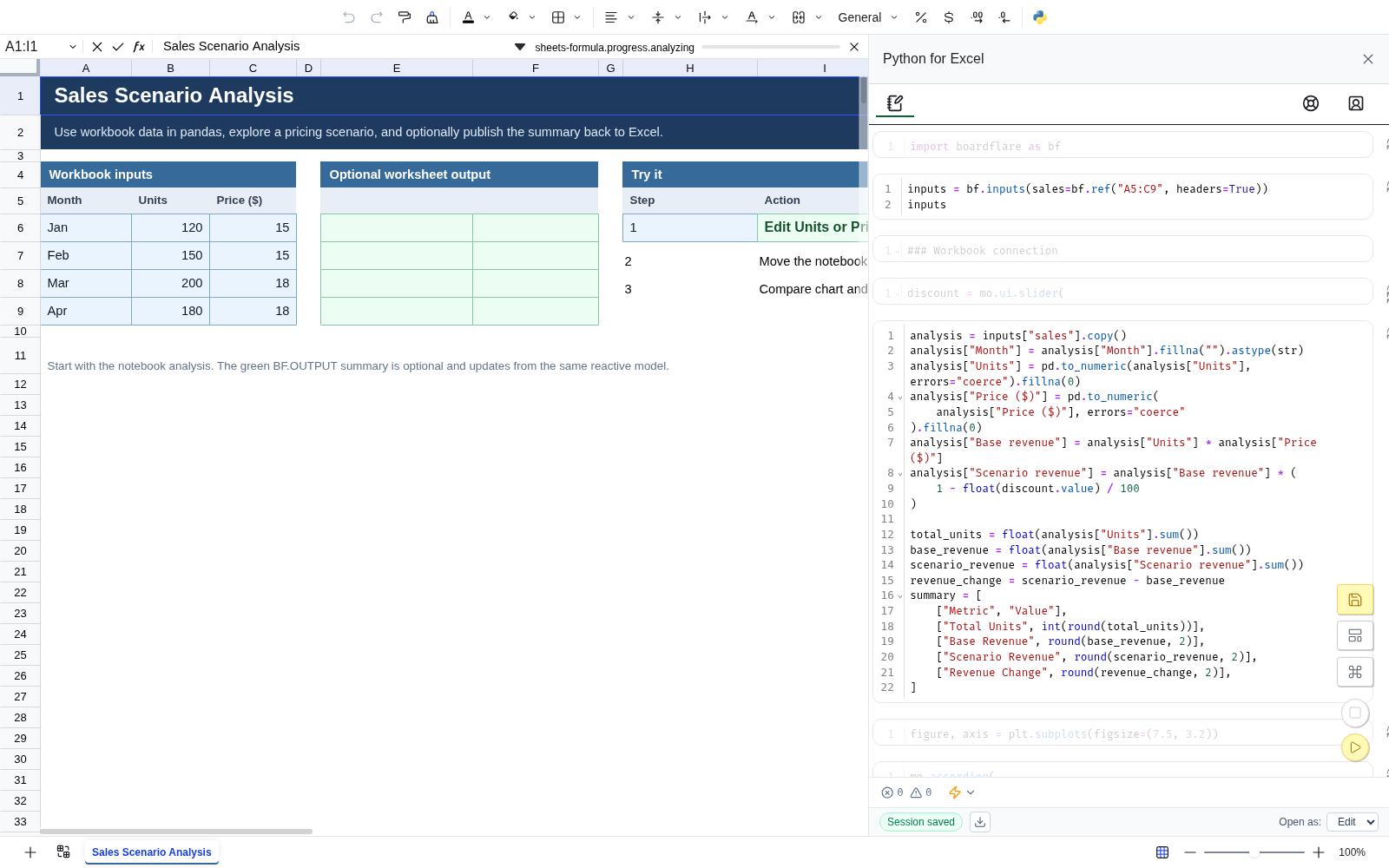
You should see:
- a Data source message;
- a Discount scenario (%) slider;
- a scenario revenue chart;
- a Try it with Excel text area near the bottom.
2. Paste the starter data into Excel
In the notebook, select and copy the TSV block under Try it with Excel. Paste it into worksheet cell A1.
The first three columns contain:
| Month | Units | Price |
|---|---|---|
| Jan | 120 | 15 |
| Feb | 150 | 15 |
| Mar | 200 | 18 |
| Apr | 180 | 18 |
| May | 225 | 20 |
| Jun | 240 | 20 |
The pasted block also includes example BF.OUTPUT() and BF.FUNCTION() formulas farther to the right.
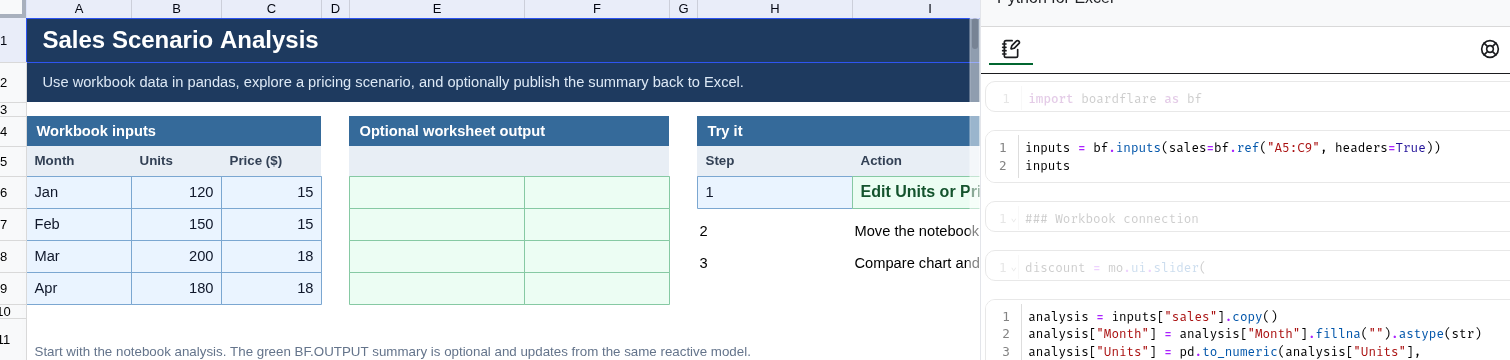
bf.inputs(…) binding is visible in the notebook on the right. The notebook consumes the workbook range directly rather than copying it into a separate mock data surface.
The notebook automatically switches from its built-in sample to the workbook range because the starter declares:
inputs = bf.inputs(
    data=bf.ref("A1:C7", headers=True),
)
inputs
ImportantKeep the widget displayed
The inputs line is not decorative output. Its displayed Anywidget model owns the live workbook connection, so keep it as the cell result.
3. Test workbook reactivity
Change a Units or Price value in Excel.
Boardflare refreshes the declared workbook input, and marimo reruns the dependent cells. The scenario total and chart update without manually rerunning the notebook in execution order.
The starter uses the synchronized value downstream as normal Python data:
sales = inputs["data"]For a multi-cell reference with headers=True, Boardflare materializes the range as a pandas DataFrame.
Change Excel value→bf.inputs refreshes→dependent cells rerun→chart + outputs update
4. Test notebook reactivity
Move the Discount scenario (%) slider.
The slider is a notebook-side input. Cells that depend on its value rerun, while unrelated cells do not need to rerun. Workbook inputs and notebook controls therefore participate in the same reactive analysis.
5. Let Excel consume notebook results
The starter publishes both a finished value and a reusable function:
def discount(price, rate):
    return price * (1 - rate)

bf.publish(
    outputs={"summary": summary},
    functions={"discount": discount},
)
The bf.publish() widget must also remain displayed so the live output/function registry stays connected.
The formulas included in the pasted starter data demonstrate both directions:
=BF.OUTPUT("summary")returns the notebook’s published summary, while:
=BF.FUNCTION("discount", F10, F11)calls the centralized Python discount implementation from the worksheet.
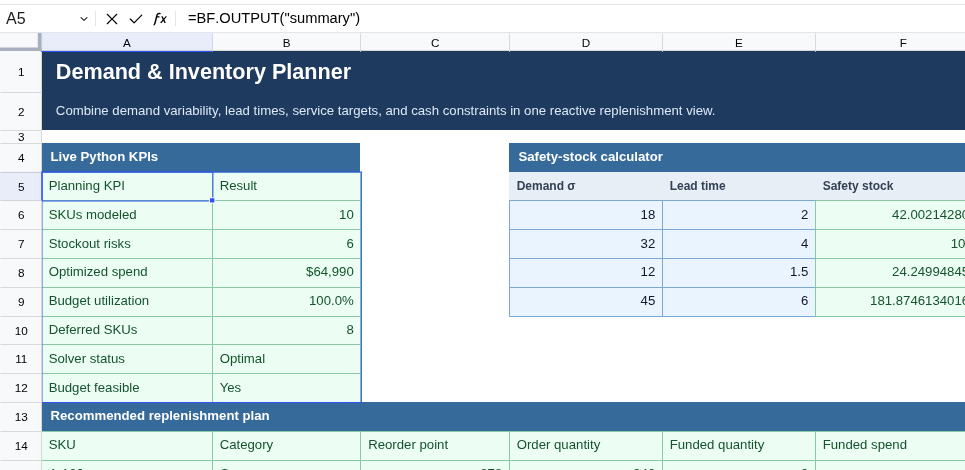
BF.OUTPUT() consumes a published notebook value. The selected origin cell shows the formula while the returned table occupies the green worksheet range.
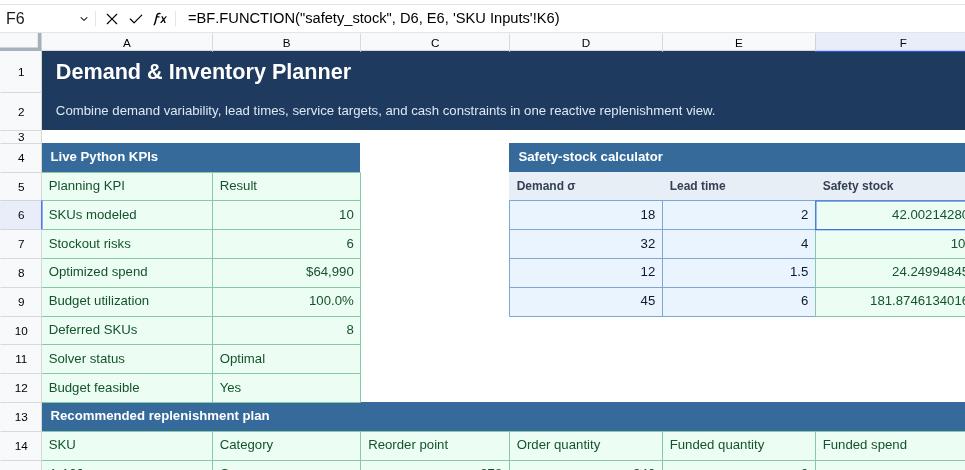
BF.FUNCTION() calls a published Python function with ordinary worksheet arguments and returns the result to the selected cell.
6. Save the notebook with the workbook
Use marimo’s Save command or keyboard save shortcut. Then wait for the Boardflare footer to report Saved.
Boardflare’s status is the persistence signal:

| Status | Meaning |
|---|---|
| Not saved | No durable notebook source has been stored yet. |
| Saving… | Boardflare received source and workbook persistence is still in progress. |
| Saved | Workbook persistence completed and passed verification. |
| Save failed | Persistence or verification failed. |
| Save required | The Open as preference changed and still needs another notebook save. |
Do not rely only on marimo’s clean/dirty editor indicator. Continue to Save and reopen for the complete persistence model.
7. Optionally open the notebook as an app
In the Boardflare footer, Open as: has two choices:
- Edit — reopen with notebook authoring controls;
- App — reopen the same saved notebook as a focused app-style presentation.
Changing Open as does not switch the current session. Choose App, save again until Boardflare reports Saved, then reopen the notebook to see the app presentation.
See App mode for the exact behavior.
Edit modebuild · test · savechoose App + save → reopenApp modecontrols · results · explanations
Saving and reopening in detail
Boardflare saves notebook source with the Excel workbook. When the workbook reopens, that source runs again to reconstruct reactive inputs, outputs, functions, charts, and controls.
Save from the notebook
Use marimo’s Save command or keyboard save shortcut. Marimo serializes the current notebook source and submits it to Boardflare, which persists it with the workbook and verifies the stored content.
Because serialization and workbook persistence are separate steps, use the Boardflare footer status as the durable-save signal.
| Status | Meaning |
|---|---|
| Not saved | No durable notebook source has been saved yet. |
| Saving… | Boardflare received source and persistence is still in progress. |
| Saved | Workbook persistence completed and passed read-back verification. |
| Save failed | Source persistence or verification failed. |
| Save required | The Open as preference differs from the last saved preference. |
Wait for Saved before closing the workbook or relying on the workbook copy.
What is stored
The Excel workbook stores:
- notebook Python source;
- the saved opening preference (
Editor user-facingApp); - persistence metadata used to verify the saved source.
Published Python values, function objects, and live widget connections are not serialized as executable objects. They are recreated by running the saved notebook in the next session.
Choose how the saved notebook opens
The Boardflare footer contains Open as: with two choices:
- Edit — reopen with notebook authoring controls;
- App — reopen in the focused app-style presentation.
Changing the selector stages a preference; it does not remount the active notebook. After changing it, the footer shows Save required until the next successful notebook save persists the preference.
See App mode for the presentation behavior.
Reopen verification
Before distributing an important workbook:
- save until Boardflare reports Saved;
- close and reopen the workbook;
- confirm the notebook starts successfully;
- confirm workbook inputs hydrate;
- confirm important
BF.OUTPUT()andBF.FUNCTION()formulas resolve; - confirm the intended Open as presentation is applied.
This catches persistence or startup issues before another person receives the file.
Open an existing Marimo .py notebook
In an Excel-backed Edit session, the Boardflare footer includes an upload icon for opening an existing Marimo .py file. The file must be:
- a
.pyfile; - valid UTF-8;
- non-empty;
- no larger than the 200,000-byte notebook source limit.
Uploading is deliberately not the same as saving. Boardflare stages the file in memory, replaces the current editor session, and starts a fresh Edit session from the uploaded source. The last saved workbook notebook remains unchanged until you use Marimo Save and Boardflare reaches Saved.
If the uploaded notebook cannot start, use Restore saved notebook. That discards the staged file and returns to the last workbook source without deleting it.
CautionUnsaved editor changes
Replacing the editor can discard Marimo edits that were never submitted with Save. If you need the current editor state, save or copy it before loading another file.
Download notebook source
The download icon exports the latest source that Marimo has already submitted to Boardflare. It first waits for FileStore writes that are already in progress, but it does not force Marimo to serialize editor changes that have never been saved.
If the downloaded .py file must include your latest edits, use Marimo Save first and wait for Boardflare to report Saved.
This source-first workflow also makes it practical to review or version a notebook outside the workbook: download the .py, work with it as normal source, then upload it into an Edit session and explicitly save the replacement when you are satisfied with it.
Current source-size boundary
| Item | Limit |
|---|---|
| Notebook source | 200,000 UTF-8 bytes |
| Complete notebook persistence record | 1,000,000 bytes |
See Supported values and limits for the rest of the runtime limits.
Resetting a saved notebook
Reset saved notebook removes the saved notebook source from the workbook and starts a fresh Edit session using the bundled starter notebook. Unsaved editor changes can be lost during reset, so save or copy anything you need first.
Browser demos are different
The standalone website demo uses session/demo-backed source rather than Excel workbook persistence. Use the demo to learn the notebook model, but validate save/reopen and streaming worksheet-function behavior in the actual Excel add-in.