flowchart LR
    A[Excel inputs<br/>ranges + names] --> B[Reactive Python notebook]
    B --> C[Notebook results<br/>controls + charts]
    B --> D[Excel outputs<br/>BF.OUTPUT]
    B --> E[Excel functions<br/>BF.FUNCTION]
    B --> F[App mode<br/>focused handoff]
Python for Excel
A Python application environment for Excel: build reactive notebook logic around workbook data, publish results and functions back to Excel, and hand off a focused App presentation.
A Python application environment for Excel
Build substantial Python logic around the workbook without turning the worksheet grid into the application source code. Keep Excel for data, assumptions, application records, review, and delivery; use one reactive notebook for transformations, models, diagnostics, controls, and reusable functions.
When the work becomes a repeatable tool, save the same notebook with the workbook and reopen it in a focused App presentation for downstream users.
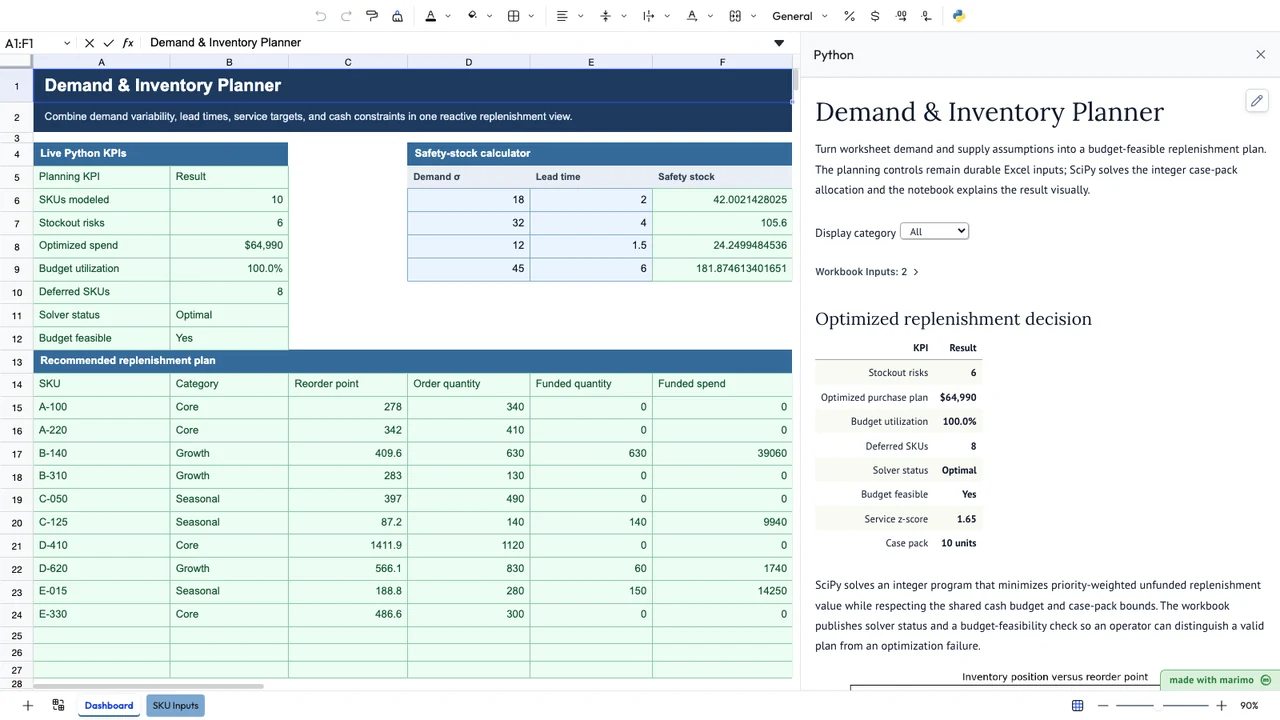 Demand & Inventory PlannerWorkbook-driven optimization applicationTry live →
Why use a notebook here?
Keep one coherent Python workspace
Keep transformations, models, validation, Markdown, intermediate results, charts, diagnostics, and controls together. Marimo reactivity reruns dependent cells when upstream values change so code and outputs stay consistent.
Connect workbook data
Use one displayed bf.inputs() widget for reactive workbook inputs. Keep bf.publish() separate for named worksheet outputs and BF.FUNCTION() calculations.
Turn the same notebook into the interface
A notebook can contain controls, tables, charts, explanations, and reactive outputs. When the workflow becomes repeatable, App mode presents that same saved notebook as a simpler operating surface.
Keep the implementation inspectable
A marimo notebook is Python source. The source is saved with the workbook and remains suitable for review, diffing, backup, and version control when your workflow supports those practices.
Learn by task
Get started
Connect the bundled starter notebook to live worksheet data, publish a result and function, and save the notebook with the workbook.
Work with Excel
Read reactive cells and ranges, return results with BF.OUTPUT(), and create worksheet functions with BF.FUNCTION().
Build reactive notebooks
Structure larger analyses, use marimo reactivity, add controls and charts, and understand browser/Pyodide package compatibility.
Hand off an application
Choose Open as: App, understand the presentation boundary, and validate the workbook before another person operates it.
For comparison and exact behavior, use Boardflare vs. Microsoft Python in Excel, the canonical Boardflare Notebook Reference, or the current template catalog.
Product boundaries to understand
Runtime and executable-workbook trust
Python executes in the browser/Pyodide runtime, and the notebook child is intentionally network-isolated with connect-src 'self'. Treat a notebook-enabled workbook as executable source and review what it reads, publishes, imports, and persists.
App mode changes presentation, not permissions
The workbook still contains the saved notebook source. App mode is intended to simplify operation, not hide implementation or enforce access control.
What this is for
Python for Excel is most compelling when the Python work is substantial enough to benefit from being understood as a coherent program while Excel still matters to the workflow. Common fits include data cleaning, forecasting, regression, simulation, optimization, reconciliation, scientific analysis, interactive analytical tools, and reusable calculations with one centralized implementation.
Use ordinary Excel formulas when they remain clear and maintainable. A small native Python-in-Excel calculation can also be a good fit when the Python naturally belongs to a worksheet cell. Use external Python when the workflow centers on unrestricted file-system automation, scheduled jobs, desktop automation, databases, large batch processing, or packages that require capabilities unavailable in a browser runtime.
Reference and implementation details
Most workbook authors do not need transport internals. For engineering and security review, see Architecture and Runtime and Security and Data Flow. For the complete API contract, workbook design, troubleshooting, and limits, use the canonical Boardflare Notebook Reference. Workbooks that still use the earlier standalone function-authoring workflow are covered by Legacy Functions Editor.